What Is Googlebot?
Googlebot is the main program Google uses to automatically crawl (or visit) webpages. And discover what's on them.
As Google’s main website crawler, its purpose is to keep Google’s vast database of content, known as the index, up to date.
Because the more current and comprehensive this index is, the better and more relevant your search results will be.
There are two main versions of Googlebot:
- Googlebot Smartphone: The primary Googlebot web crawler. It crawls websites as if it were a user on a mobile device.
- Googlebot Desktop: This version of Googlebotcrawls websites as if it were a user on a desktop computer. Checking the desktop version of your site.
There are also more specific crawlers like Googlebot Image, Googlebot Video, and Googlebot News.
Why Is Googlebot Important for SEO?
Googlebot is crucial for Google SEO because your pages wouldn’t be crawled and indexed (in most cases) without it. If your pages aren’t indexed, they can’t be ranked and shown in search engine results pages (SERPs).
And no rankings means no organic (unpaid) search traffic.
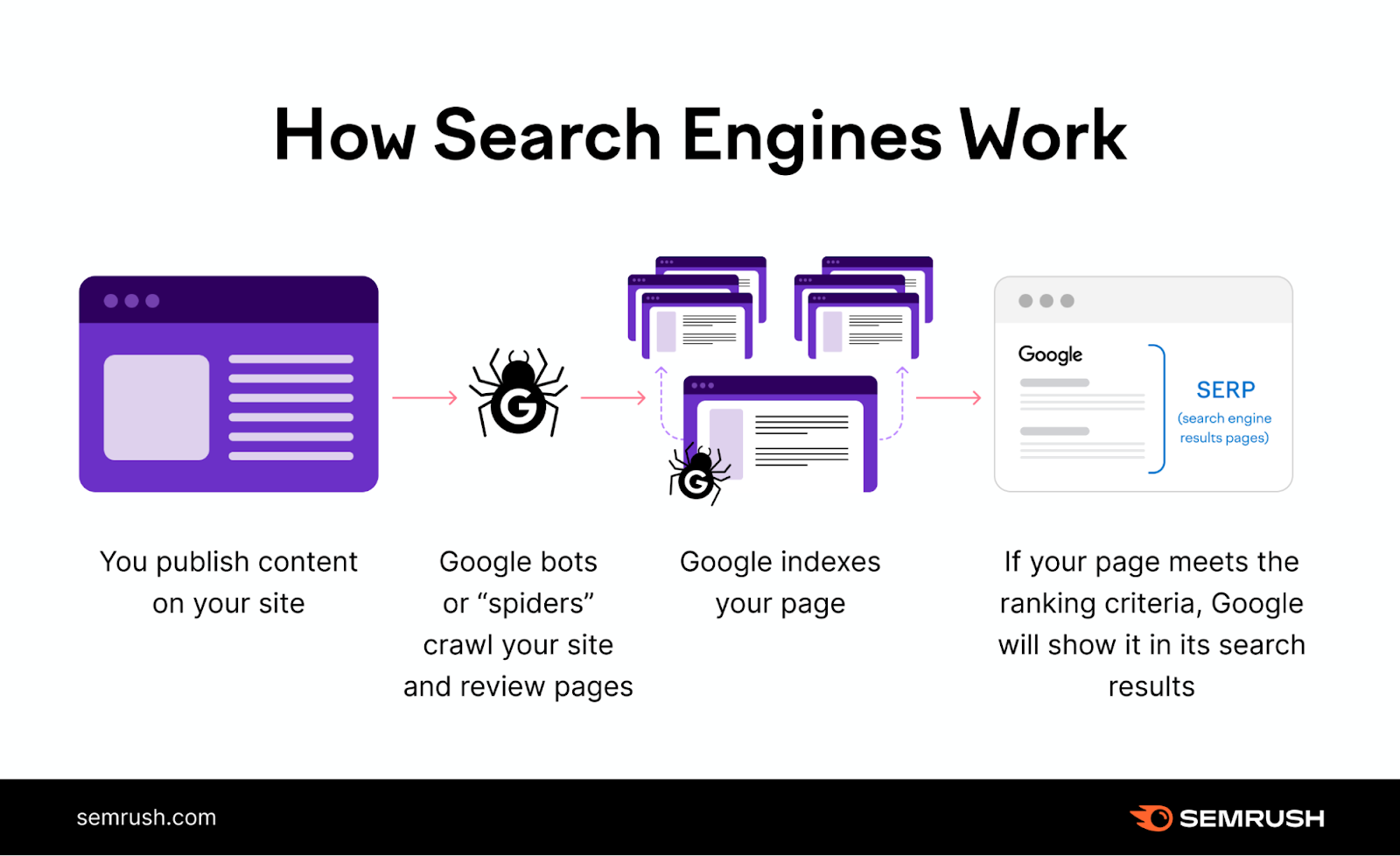
Plus, Googlebot regularly revisits websites to check for updates.
Without it, new content or changes to existing pages wouldn't be reflected in search results. And not keeping your site up to date can make maintaining your visibility in search results more difficult.
How Googlebot Works
Googlebot helps Google serve relevant and accurate results in the SERPs by crawling webpages and sending the data to be indexed.
Let’s look at the crawling and indexing stages more closely:
Crawling Webpages
Crawling is the process of discovering and exploring websites to gather information. Gary Illyes, an analyst at Google, explains the process in this video:

Googlebot is constantly crawling the internet to discover new and updated content.
It maintains a continuously updated list of webpages. Including those discovered during previous crawls along with new sites.
This list is like Googlebot’s personal adventure map. Guiding it on where to explore next.
Because Googlebot also follows links between pages to continuously discover new or updated content.
Like this:
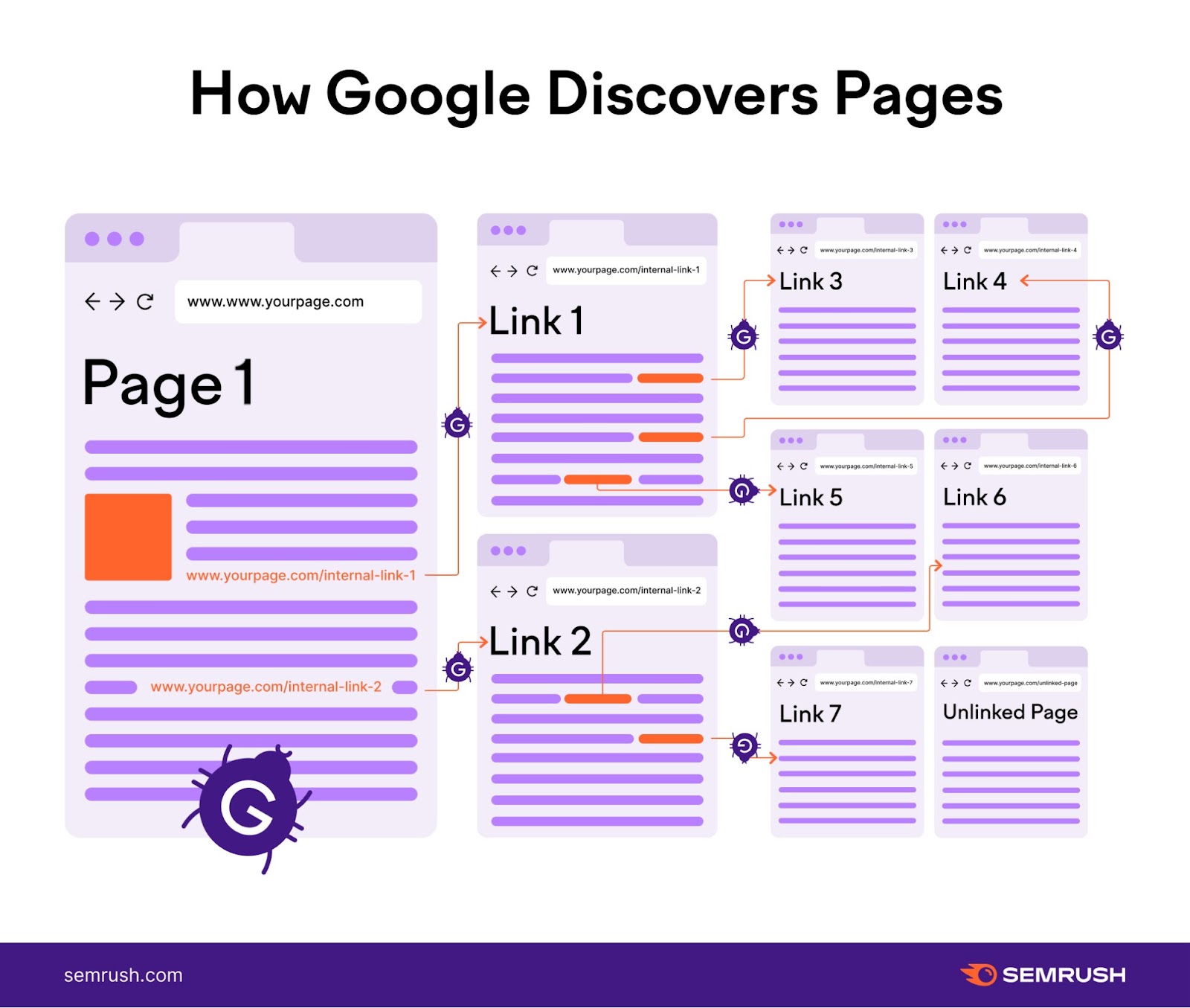
Once Googlebot discovers a page, it may visit and fetch (or download) its content.
Google can then render (or visually process) the page. Simulating how a real user would see and experience it.
During the rendering phase, Google runs any JavaScript it finds. JavaScript is code that lets you add interactive and responsive elements to webpages.
Rendering JavaScript lets Googlebot see content in a similar way to how your users see it.
Open the tool, insert your domain, and click “Start Audit.”
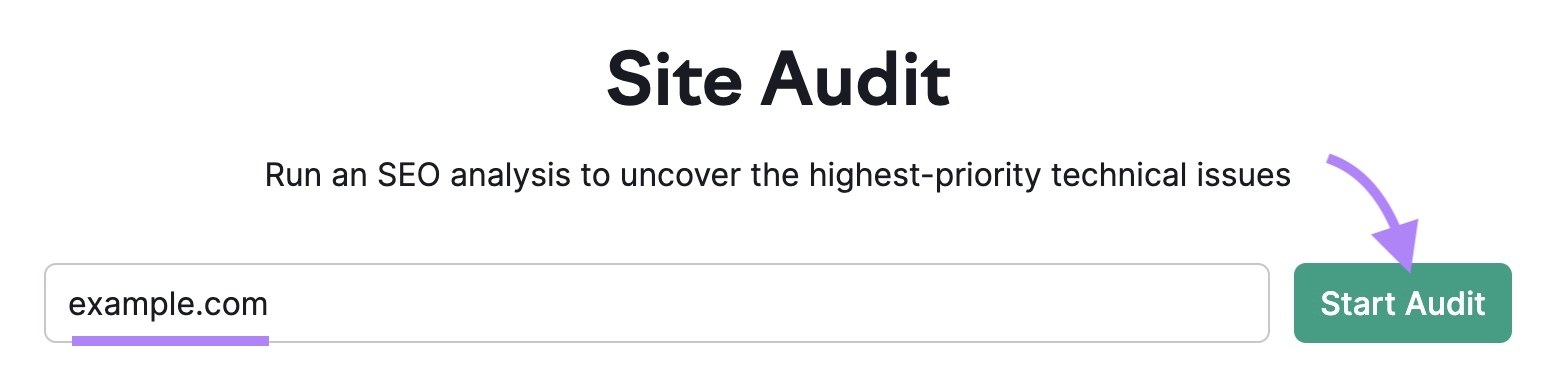
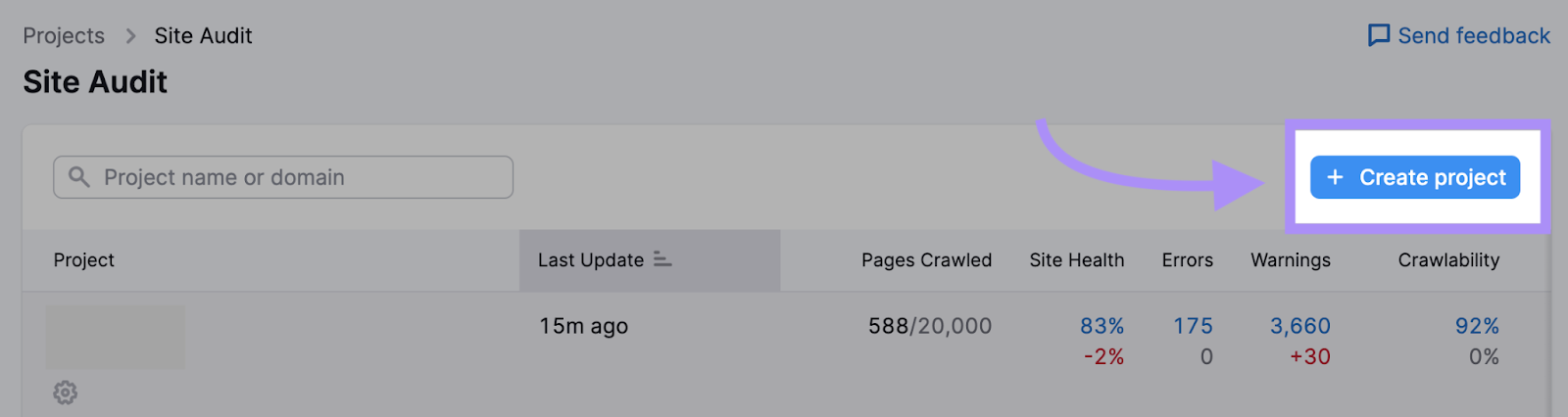
If you’ve already run an audit or created projects, click the “+ Create project” button to set up a new one.
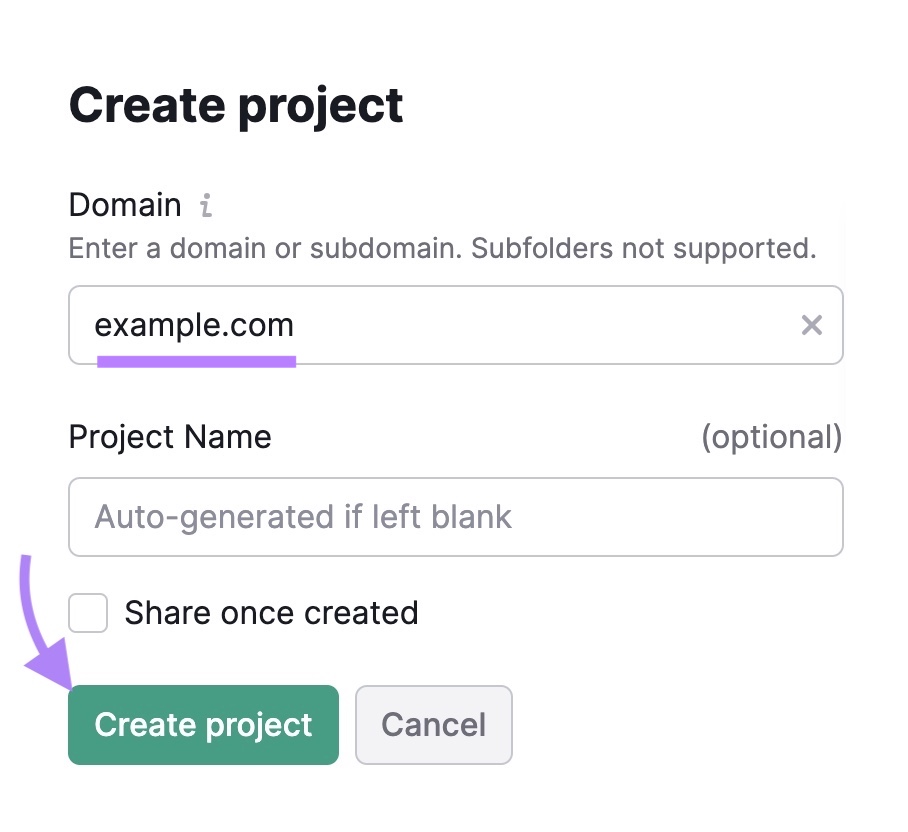
Enter your domain, name your project, and click “Create project.”
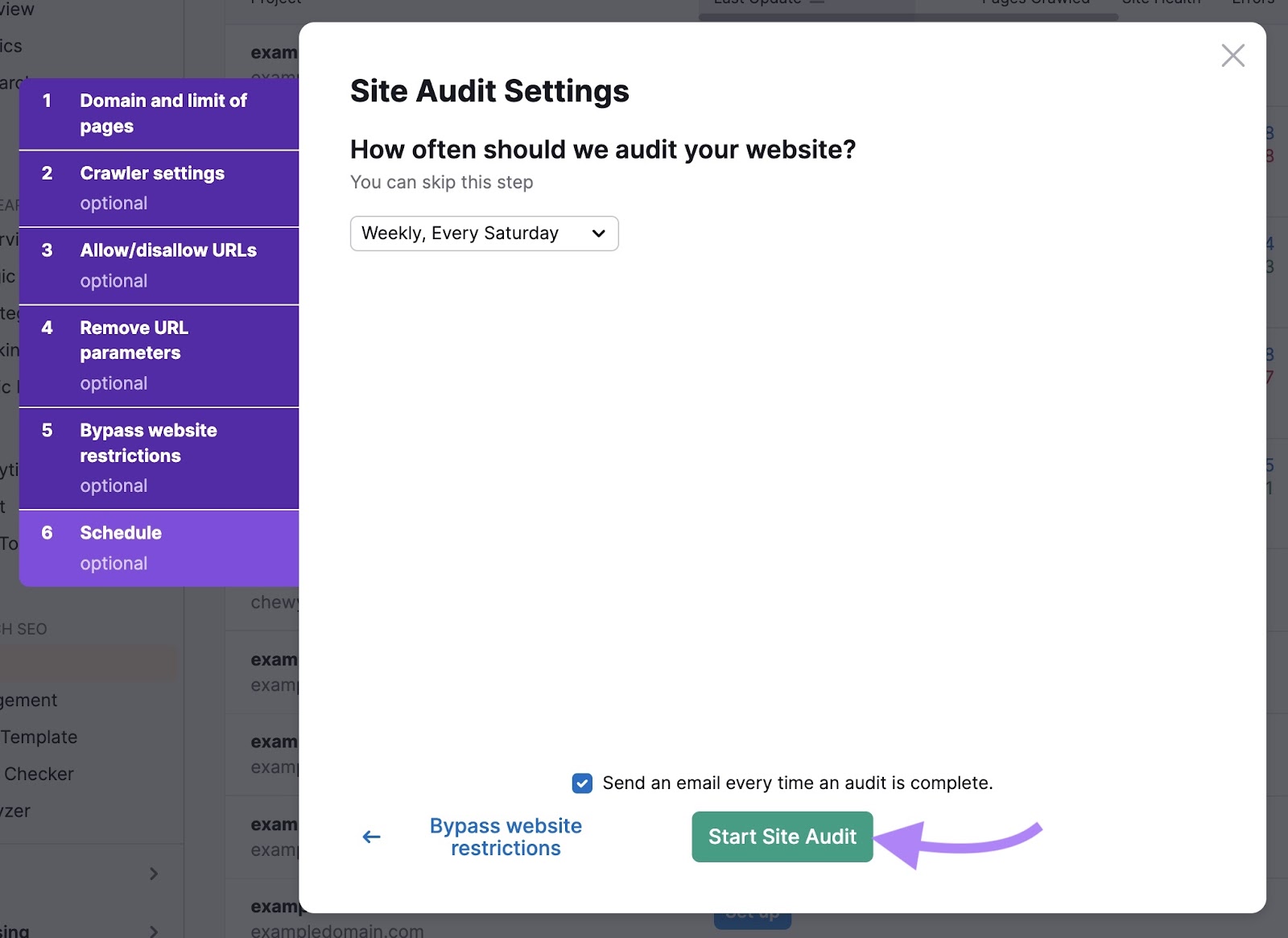
Next, you’ll be asked to configure your settings.
If you’re just starting out, you can use the default settings in the “Domain and limit of pages” section.
Then, click on the “Crawler settings” tab to pick the user agent you would like to crawl with. A user agent is a label that tells websites who's visiting them. Like a name tag for a search engine bot.
There is no major difference between the bots you can choose from. They’re all designed to crawl your site like Googlebot would.

Check out our Site Audit configuration guide for more details on how to customize your audit.
When you’re ready, click “Start Site Audit.”
You’ll then see an overview page like below. Navigate to the “Issues” tab.
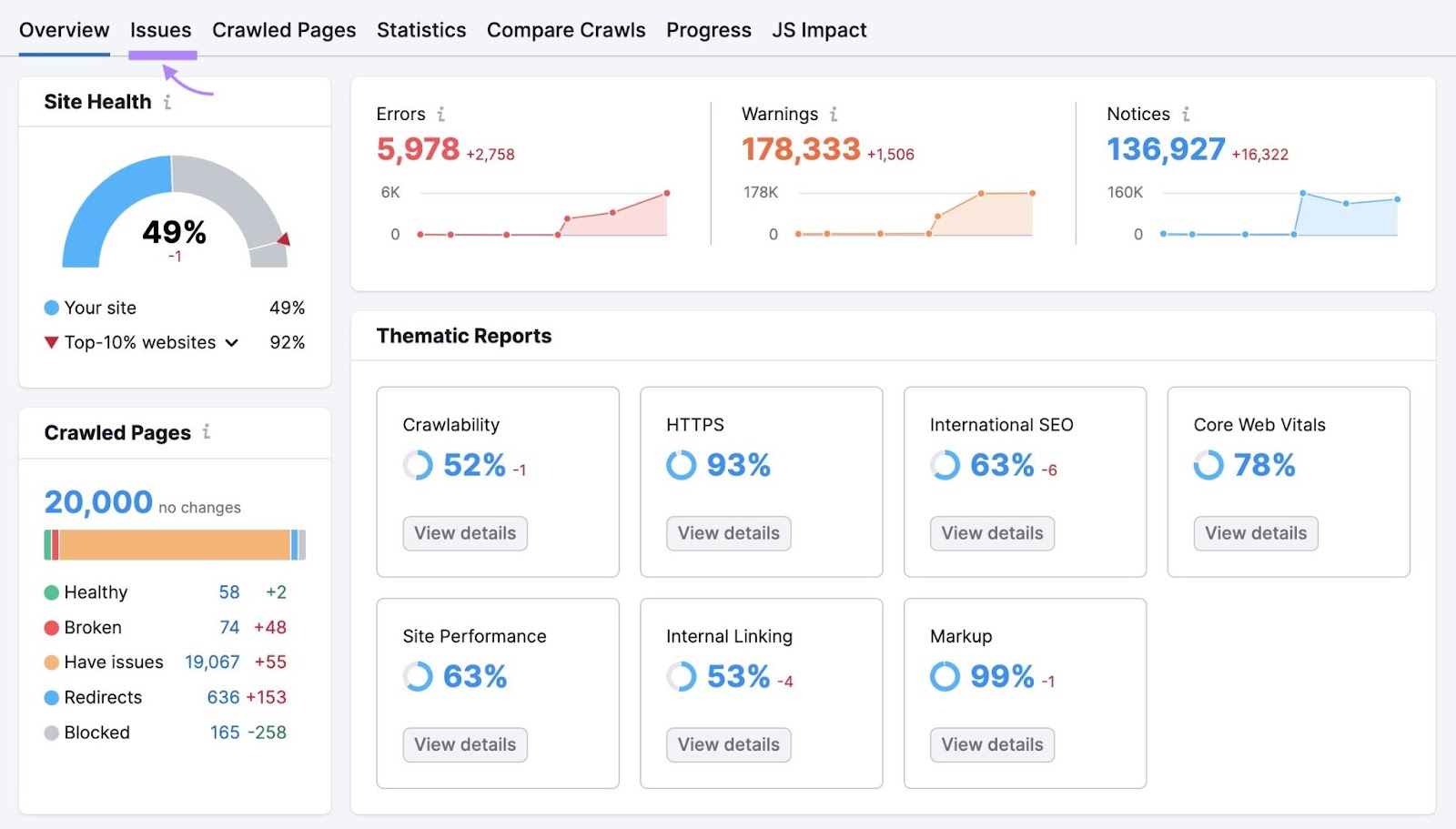
Here, you’ll see a full list of errors, warnings, and notices affecting your website’s health.
Click the “Category” drop-down and select “Crawlability” to filter the errors.

Not sure what an error means and how to address it?
Click “Why and how to fix it” or “Learn more” next to any row for a short explanation of the issue and tips on how to resolve it.
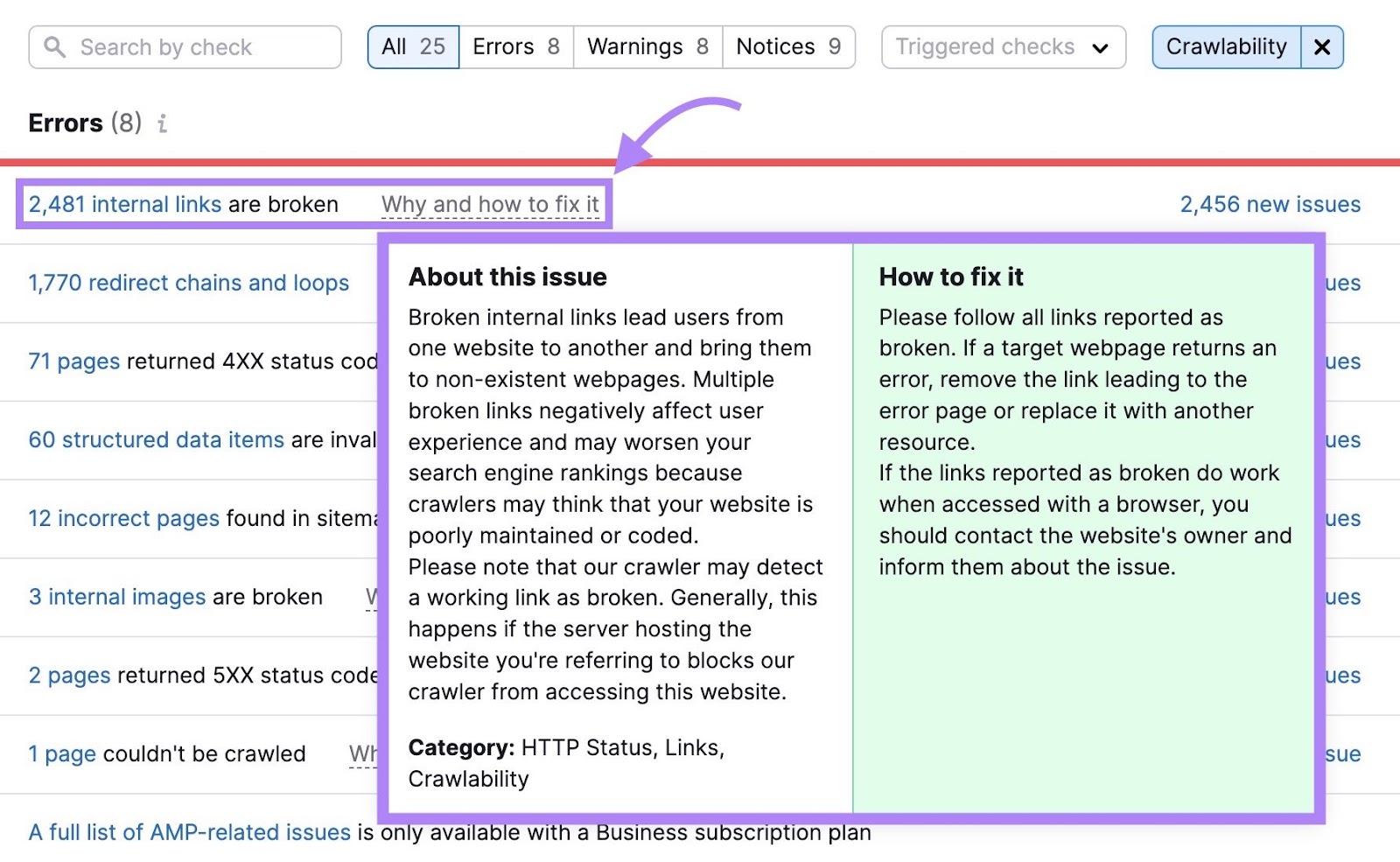
Go through and fix each issue to make it easier for Googlebot to crawl your website.
Indexing Content
After GoogleBot crawls your content, it sends it for indexing consideration.
Indexing is the process of analyzing a page to understand its contents. And assessing signals like relevance and quality to decide if it should be added to Google’s index.
Here’s how Google’s Gary Illyes explains the concept:

During this process, Google processes (or examines) a page’s content. And tries to determine if a page is a duplicate of another page on the internet. So it can choose which version to show in its search results.
Once Google filters out duplicates and assesses relevant signals, like content quality, it may decide to index your page.
Then, Google’s algorithms perform the ranking stage of the process. To determine if and where your content should appear in search results.
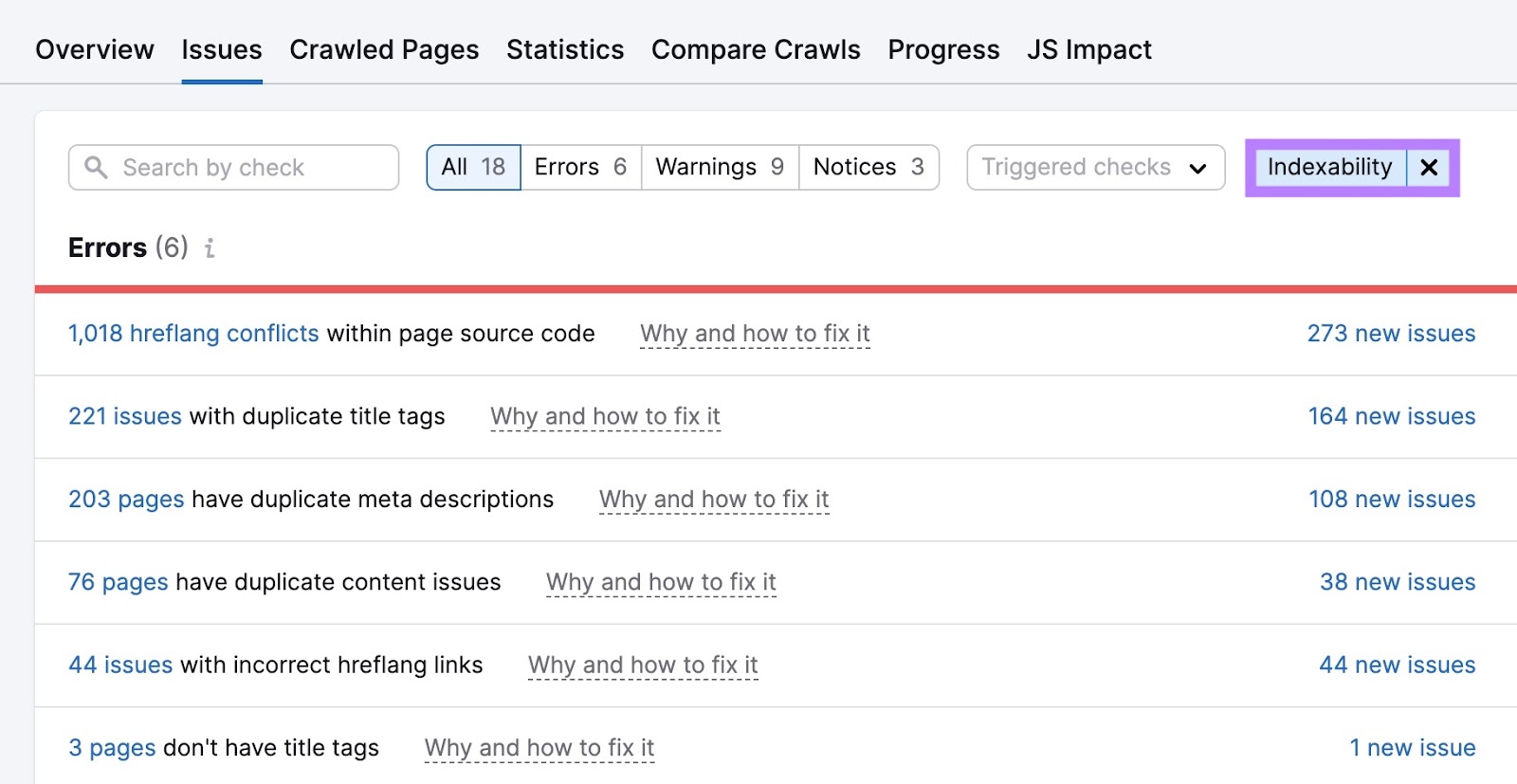
From your “Issues” tab, filter for “Indexability.” Make your way through the errors first. Either by yourself or with the help of a developer. Then, tackle the warnings and notices.
Further reading: Crawlability & Indexability: What They Are & How They Affect SEO
How to Monitor Googlebot's Activity
Regularly checking Googlebot’s activity lets you spot any indexability and crawlability issues. And fix them before your site’s organic visibility falls.
Here are two ways to do this:
Use Google Search Console’s Crawl Stats Report
Use Google Search Console’s “Crawl stats” report for an overview of your site’s crawl activity. Including information on crawl errors and average server response time.
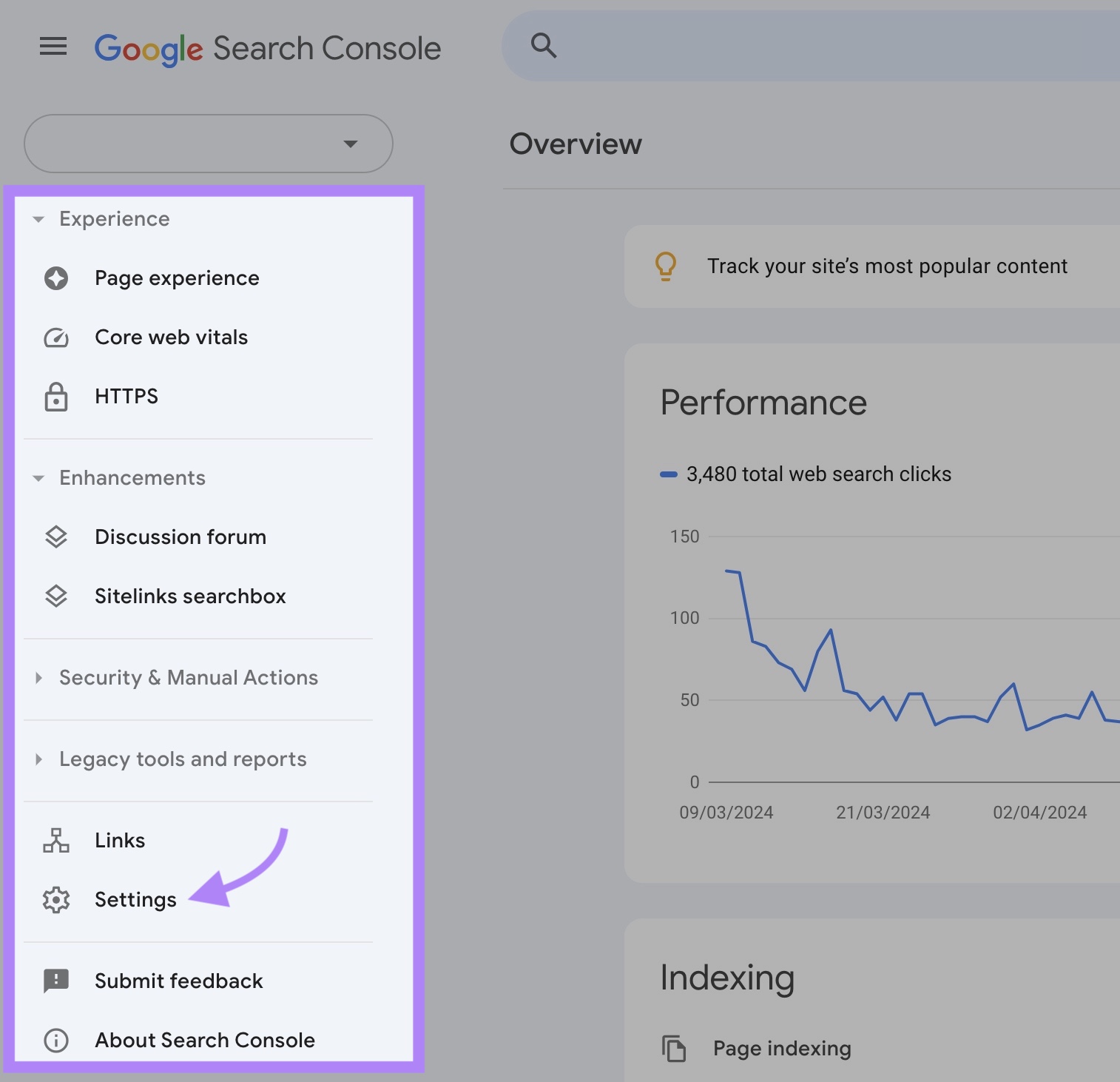
To access your report, log in to Google Search Console property and navigate to “Settings” from the left-hand menu.
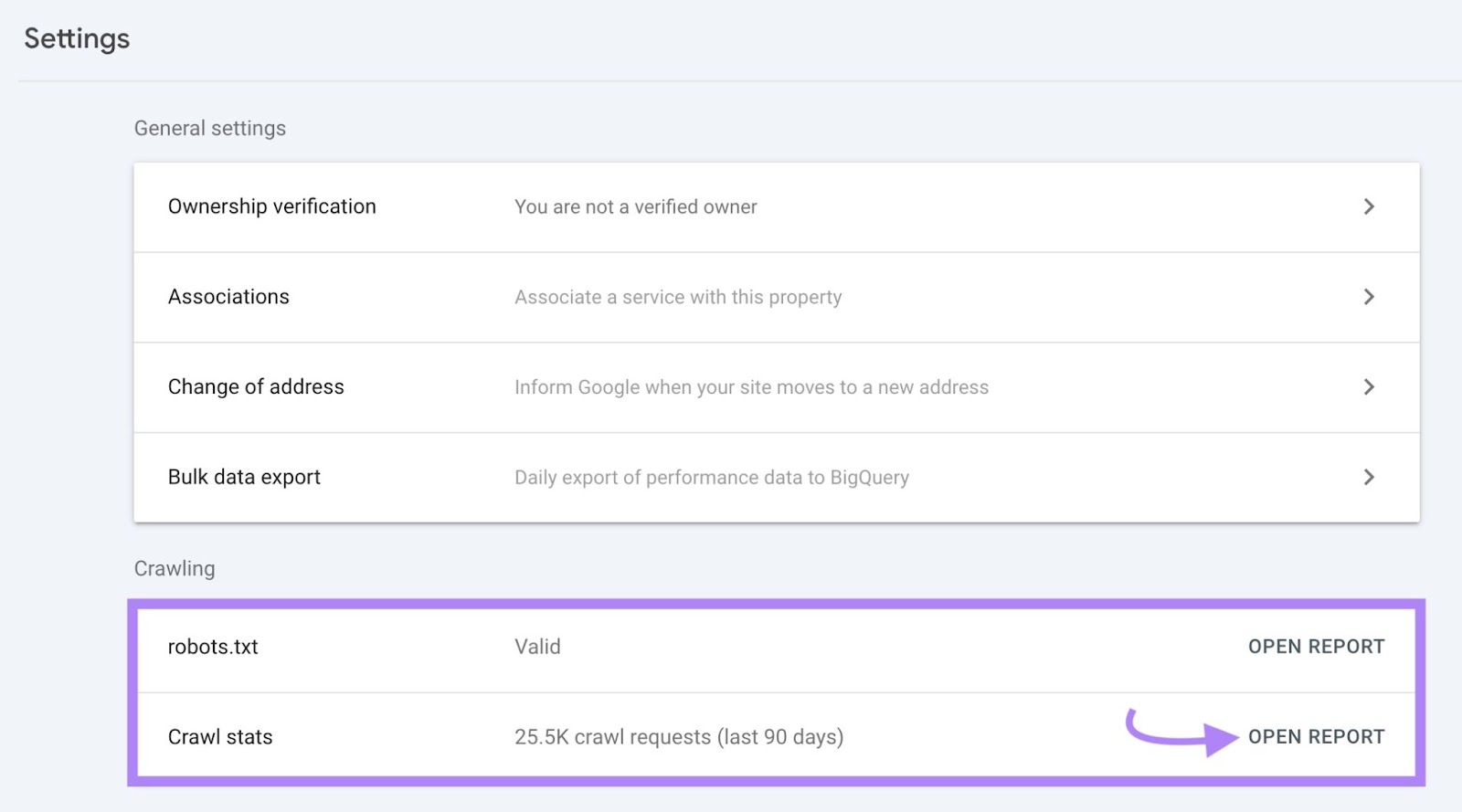
Scroll down to the “Crawling” section. Then, click the “Open Report” button in the “Crawl stats” row.
You’ll see three crawling trends charts. Like this:
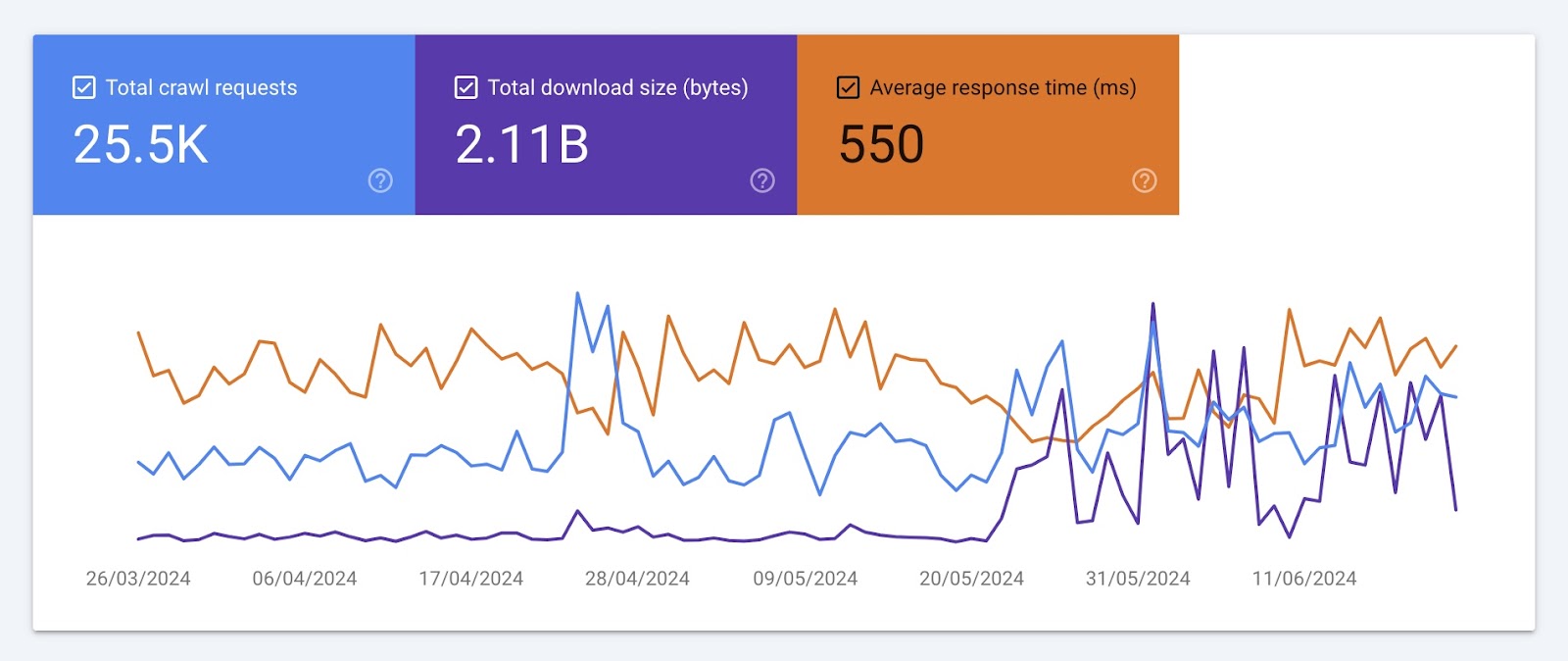
These charts show the development of three metrics over time:
- Total crawl requests: The number of crawl requests Google’s crawlers (like Googlebot) have made in the past three months
- Total download size: The number of bytes Google crawlers have downloaded while crawling your site
- Average response time: The amount of time it takes for your server to respond to a crawl request
Take note of significant drops, spikes, and trends in each of these charts. And work with your developer to spot and address any issues. Like server errors or changes to your site structure.
The “Crawl requests breakdown” section groups crawl data by response, file type, purpose, and Googlebot type.
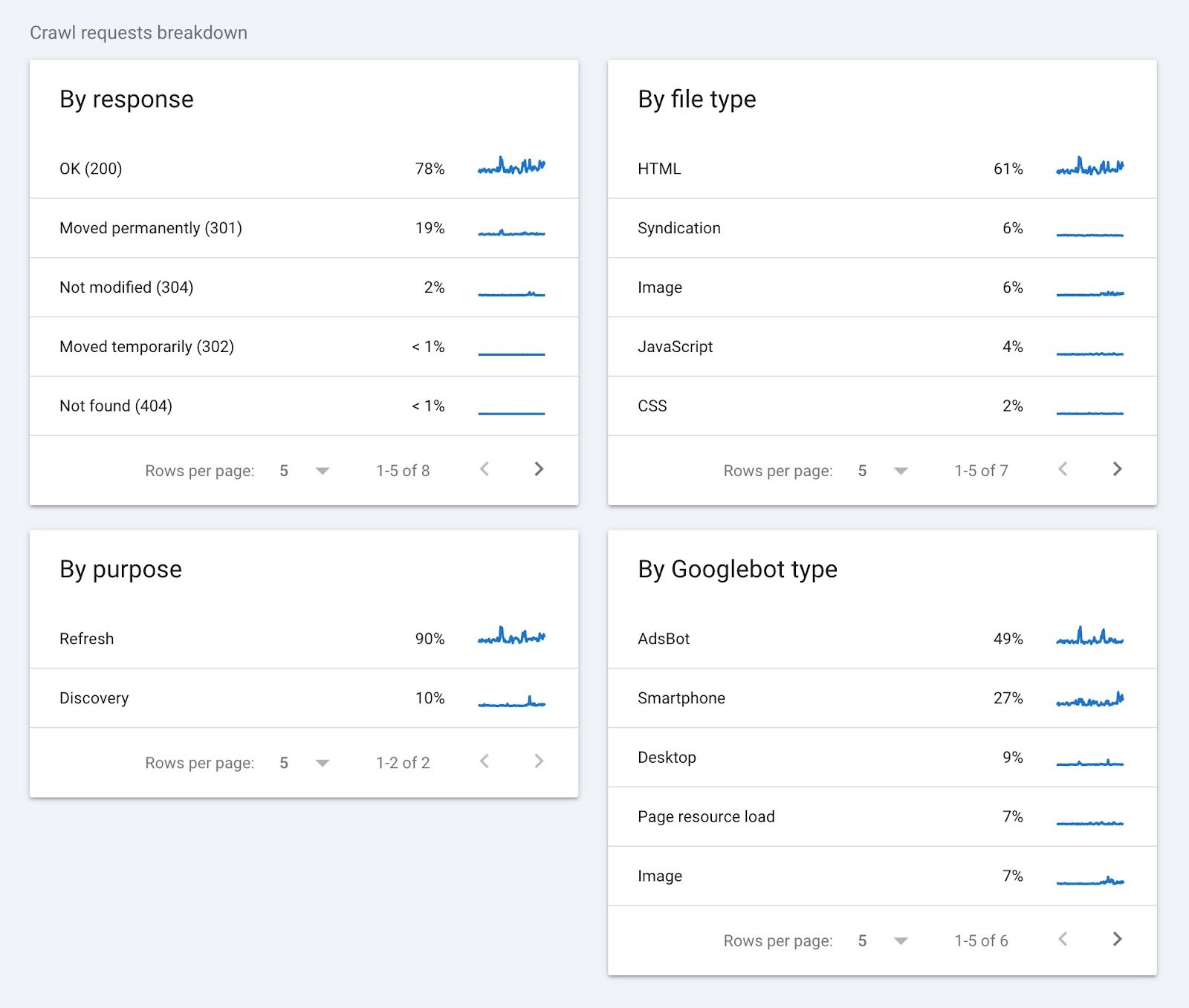
Here’s what this data tells you:
- By response: Shows you how your server has handled Googlebot’s requests. A high percentage of “OK (200)” responses are a good sign. It means most pages are accessible. On the other hand, errors like 404 or 301 can indicate broken links or moved content that you may need to fix.
- By file type: Tells you the type of files Googlebot is crawling. This can help uncover issues related to specific file types, like images or JavaScript.
- By purpose: Indicates the reason for a crawl. A high discovery percentage indicates Google is dedicating resources to finding new pages. High refresh numbers mean Google is frequently checking existing pages.
- By Googlebot type: Shows which Googlebot user agents are crawling your site. If you’re noticing crawling spikes, your developer can check the user agent type to determine whether there is an issue.
Analyze Your Log Files
Log files are documents that record details about every request made to your server by browsers, people, and other bots. Along with how they interact with your site.
By reviewing your log files, you can find information like:
- IP addresses of visitors
- Timestamps of each request
- Requested URLs
- The type of request
- The amount of data transferred
- The user agent, or crawler bot
Here’s what a log file looks like:
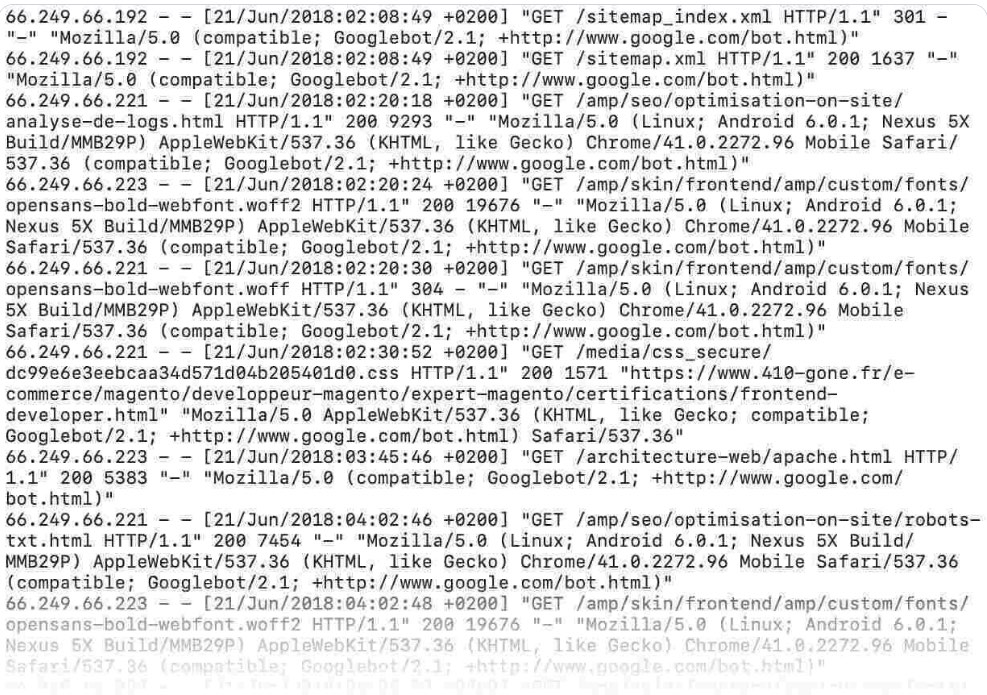
Analyzing your log files lets you dig deeper into Googlebot’s activity. And identify details like crawling issues, how often Google crawls your site, and how fast your site loads for Google.
Log files are kept on your web server. So to download and analyze them, you first need to access your server.
Some hosting platforms have built-in file managers. This is where you can find, edit, delete, and add website files.
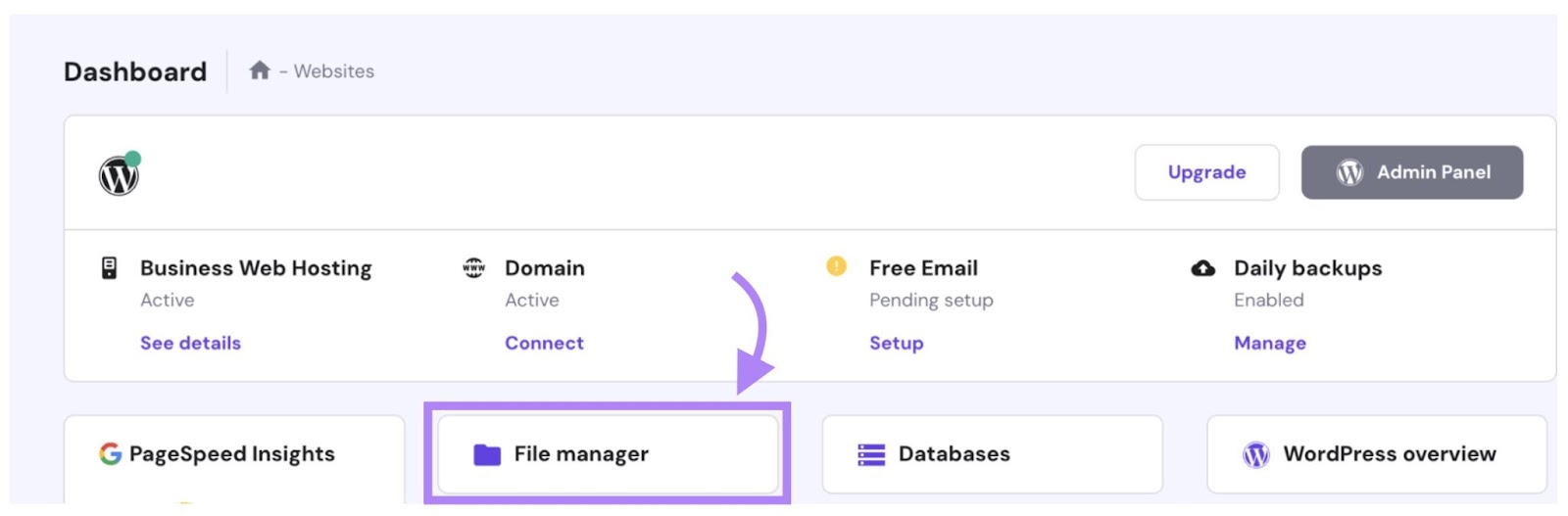
Alternatively, your developer or IT specialist can also download your log files using a File Transfer Protocol (FTP) client like FileZilla.
Once you have your log file, use Semrush’s Log File Analyzer to understand that data. And answer questions like:
- What are your most crawled pages?
- What pages weren’t crawled?
- What errors were found during the crawl?
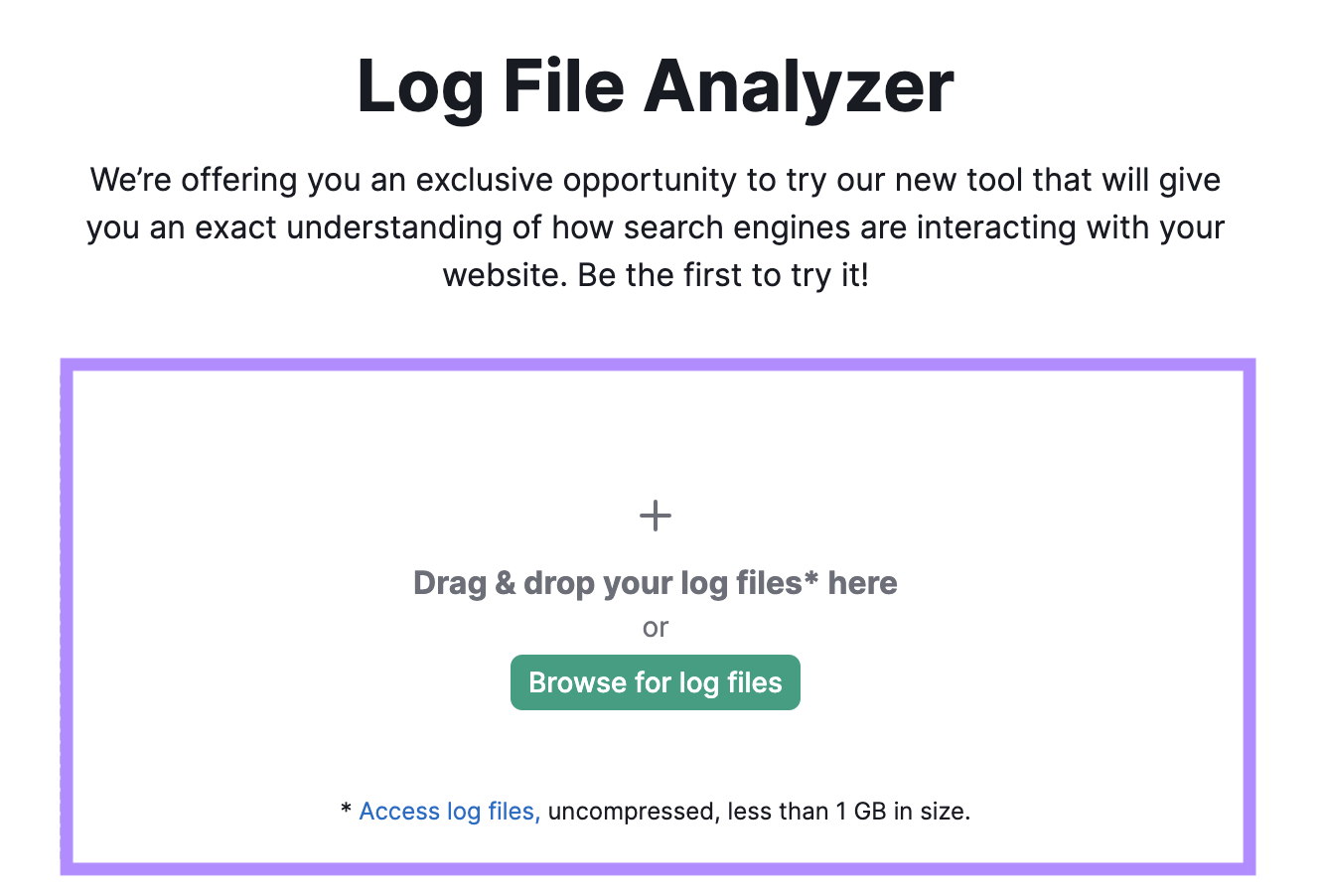
Open the tool and drag and drop your log file into it. Then, click “Start Log File Analyzer.”
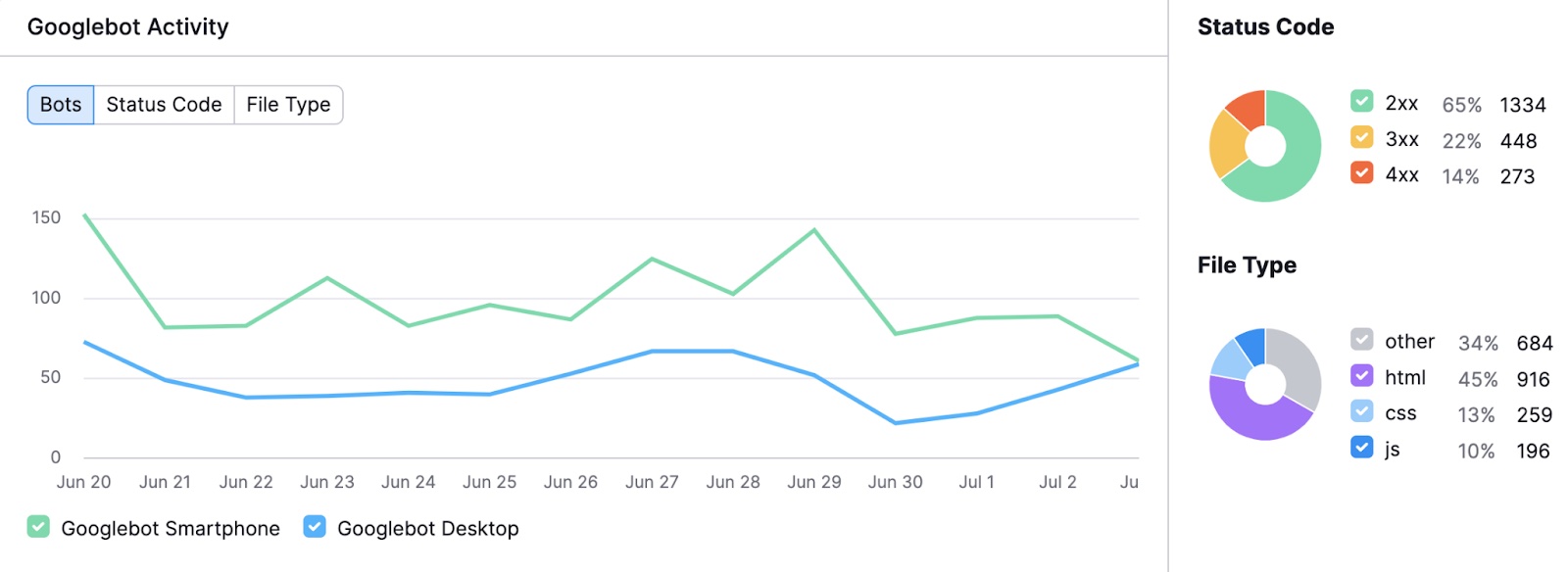
Once your results are ready, you’ll see a chart showing Googlebot’s activity on your site in the past 30 days. This helps you identify unusual spikes or drops.
You’ll also see a breakdown of different status codes and requested file types.
Scroll down to the “Hits by Pages” table for more specific insights on individual pages and folders.
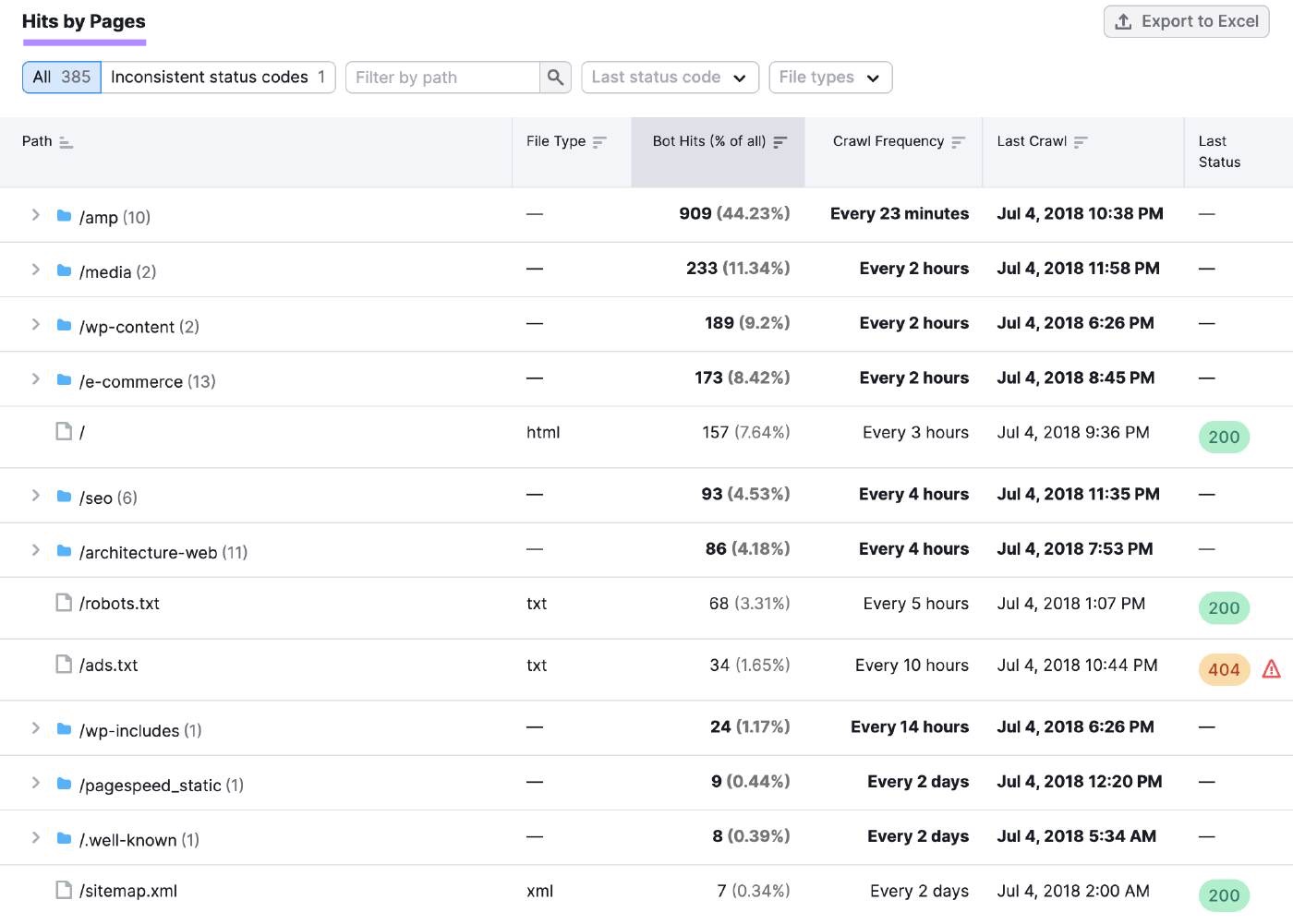
You can use this information to look for patterns in response codes. And investigate any availability issues.
For example, a sudden increase in error codes (like 404 or 500) across multiple pages could indicate server problems causing widespread website outages.
Then, you can contact your website hosting provider to help diagnose the problem and get your website back on track.
How to Block Googlebot
Sometimes, you might want to prevent Googlebot from crawling and indexing entire sections of your site. Or even specific pages.
This could be because:
- Your site is under maintenance and you don’t want visitors to see incomplete or broken pages
- You want to hide resources like PDFs or videos from being indexed and appearing in search results
- You want to keep certain pages from being made public, like intranet or login pages
- You need to optimize your crawl budget and ensure Googlebot focuses on your most important pages
Here are three ways to do that:
Robots.txt File
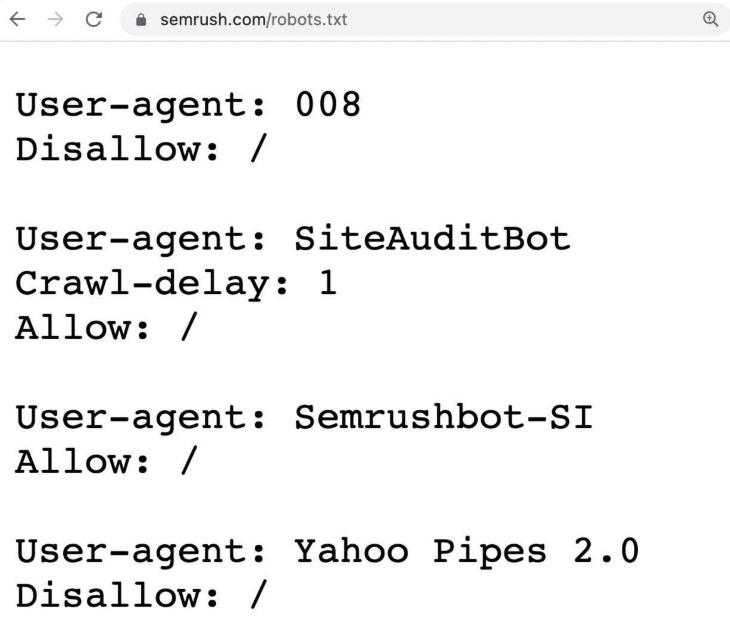
A robots.txt file is a set of instructions that tells search engine crawlers, like Googlebot, which pages or sections of your site they should and shouldn’t crawl.
It helps manage crawler traffic and can prevent your site from being overloaded with requests.
Here’s an example of a robots.txt file:
For example, you could add a robots.txt rule to prevent crawlers from accessing your login page. This helps keep your server resources focused on more important areas of your site.
Like this:
User-agent: Googlebot
Disallow: /login/
Further reading: Robots.txt: What Is Robots.txt & Why It Matters for SEO
However, robots.txt files don’t necessarily keep your pages out of Google’s index. Because Googlebot can still find these pages (e.g., if other pages link to them), and then they may still be indexed and shown in search results.
If you don’t want a page to appear in the SERPs, use meta robots tags.
Meta Robots Tags
A meta robots tag is a piece of HTML code that lets you control how an individual page is crawled, indexed, and displayed in the SERPs.

Some examples of robots tags, and their instructions, include:
- noindex: Do not index this page
- noimageindex: Do not index images on this page
- nofollow: Do not follow the links on this page
- nosnippet: Do not show a snippet or description of this page in search results
You can add these tags to the <head> section of your page’s code. For example, if you want to block Googlebot from indexing your page, you could add a noindex tag.
Like this:
<meta name="googlebot" content="noindex">This tag will prevent Googlebot from showing the page in search results. Even if other sites link to it.
Further reading: Meta Robots Tag & X-Robots-Tag Explained
Password Protection
If you want to block both Googlebot and users from accessing a page, use password protection.
This method ensures that only authorized users can view the content. And it prevents the page from being indexed by Google.
Examples of pages you might password protect include:
- Admin dashboards
- Private member areas
- Internal company documents
- Staging versions of your site
- Confidential project pages
If the page you’re password protecting is already indexed, Google will eventually remove it from its search results.
Make It Easy for Googlebot to Crawl Your Website
Half the battle of SEO is making sure your pages even show up in the SERPs. And the first step is ensuring Googlebot can actually crawl your pages.
Regularly monitoring your site’s crawlability and indexability helps you do that.
Get a free SEO audit to see where you stand. To find issues across your full site, use Semrush Site Audit.
The tool lets you run on-demand crawling and schedule auto re-crawls on a daily or weekly basis. So you’re always on top of your site’s health.
Try it today.