What Is a Google Analytics Tracking ID?
A Google Analytics tracking ID is a unique identifier that’s automatically assigned to each website or app in Google Analytics, a popular platform for tracking user behavior.
The tracking ID is used during GA installation. To ensure that user interaction data from your website or app is transferred to the correct data container.
Google Analytics 4
In Google Analytics 4 (GA4), a tracking ID for a website is called the measurement ID.
It typically has the structure “G-XXXXXXX.” Where “XXXXXXX” is a unique alphanumeric code.
The measurement ID is frequently referred to as the Google tag ID.
And it’s also used in the Google tag—the unique tracking code that can be used to manually install GA4 on a website or app.
Here’s where you’ll find the ID in the GA4 tracking code:
<!-- Google tag (gtag.js) -->
<script async src="https://www.googletagmanager.com/gtag/js?id=G-XXXXXXX"></script>
<script>
window.dataLayer = window.dataLayer || [];
function gtag(){dataLayer.push(arguments);}
gtag('js', new Date());
gtag('config', 'G-PSW1MY7HB4');
</script>
Universal Analytics
In Universal Analytics (UA), the predecessor to GA4, each property had what was called a tracking ID.
The ID had the structure “UA-XXXXX-Y.” Where “XXXXX” was a series of numbers that represented your account ID and “Y” was the property number within the account.
How to Find Your Google Analytics Measurement ID
Let’s learn where to find the Google Analytics Tracking ID in GA4.
First, sign in to Google Analytics. And open or create your property.
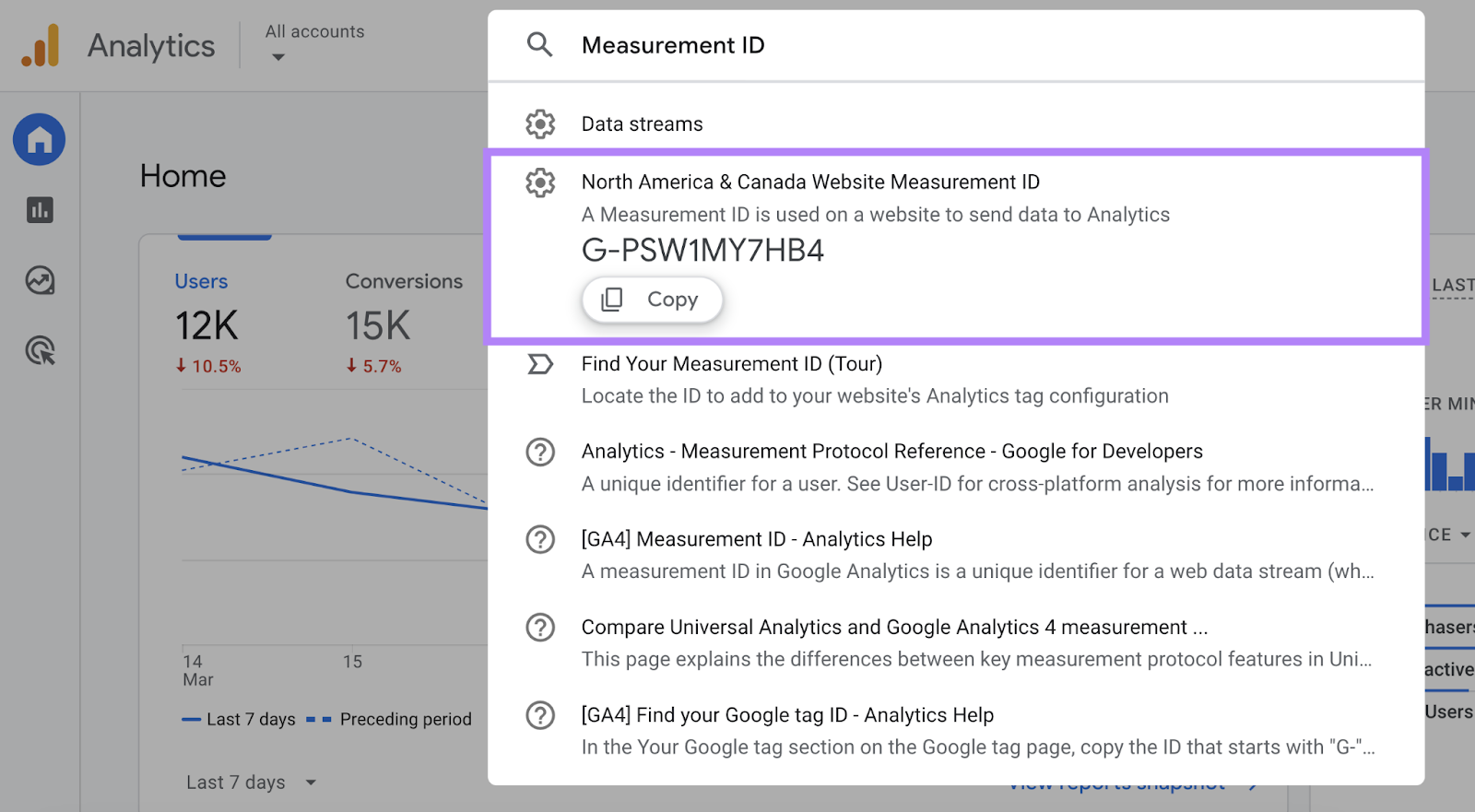
Then, type “Measurement ID” into the search bar at the top and refer to the correct result.
Alternatively, go to “Admin” > “Property settings” > “Data collection and modification” > “Data streams” and choose a data stream.
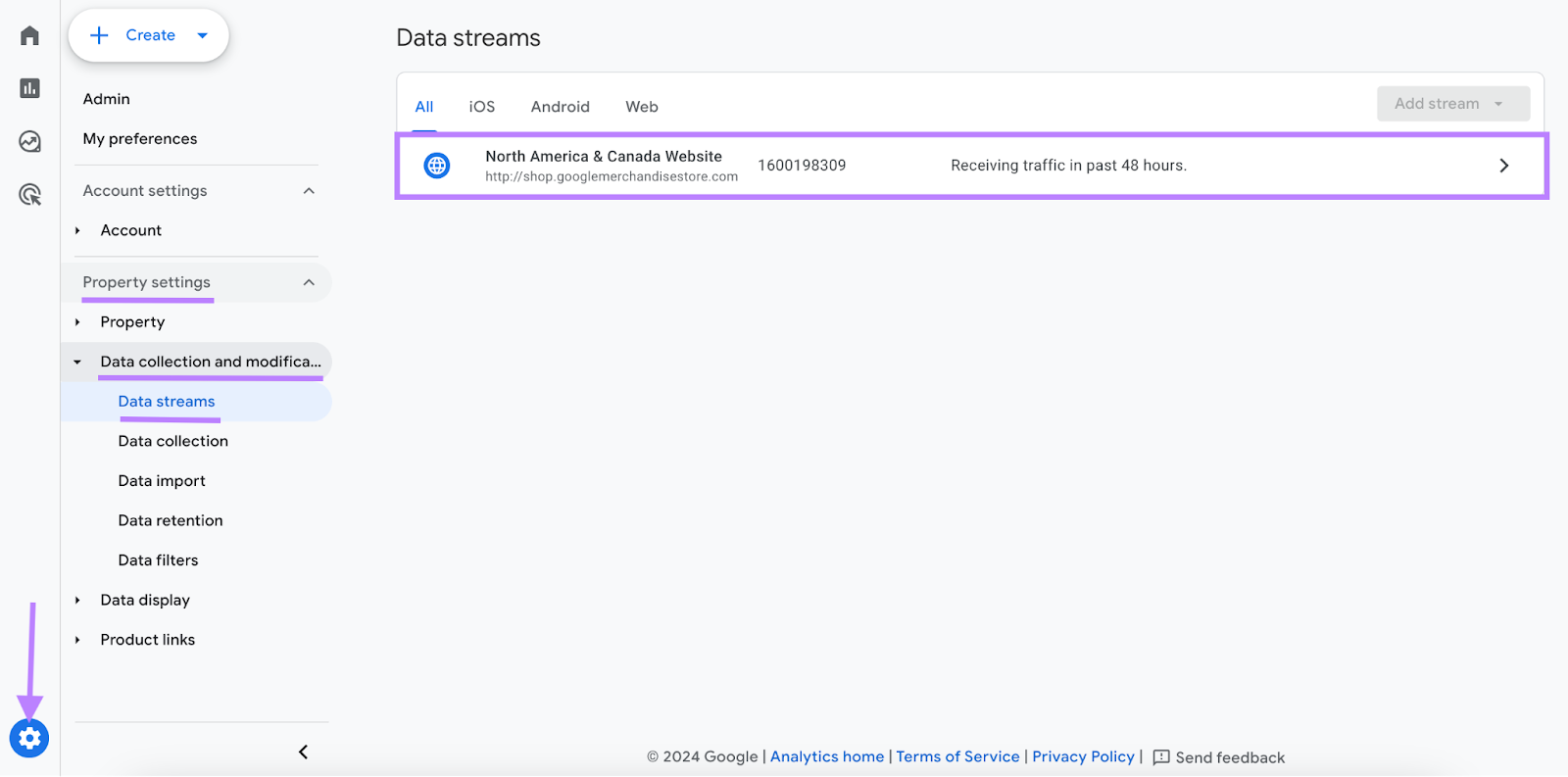
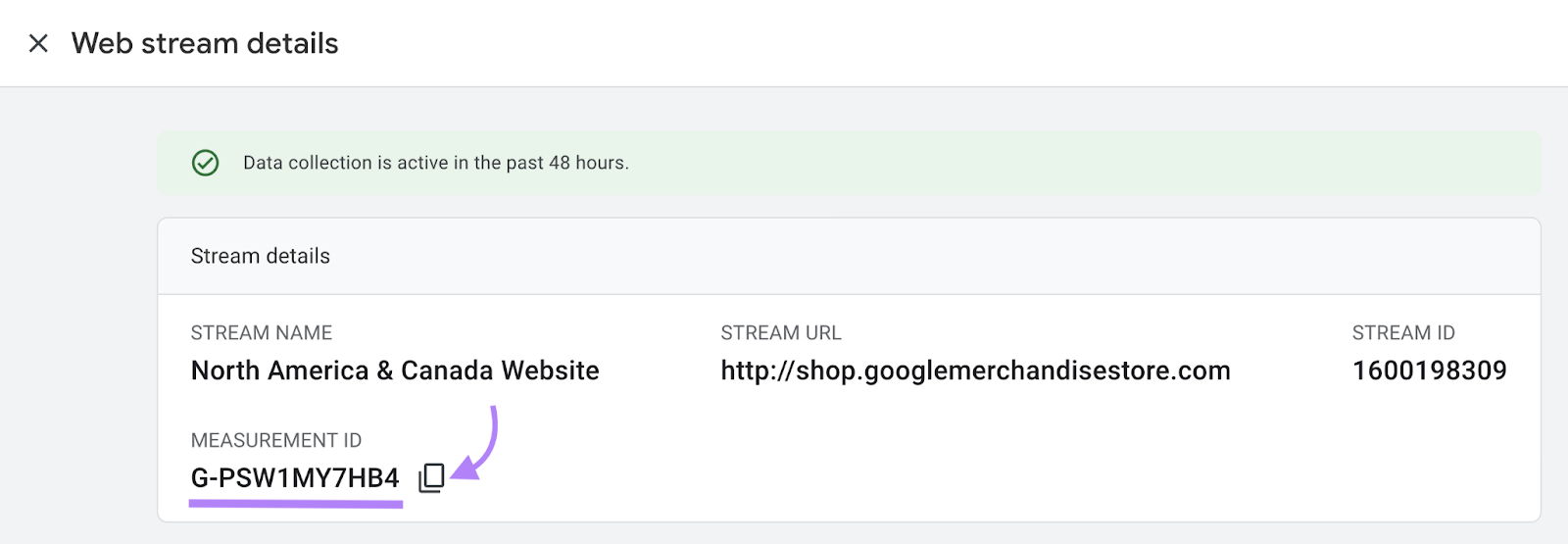
Then, refer to the “Measurement ID” section.
Note that you can copy the ID by clicking the icon alongside it.
How to Install GA4 on Your Website
There are three different ways to install GA4 on your website:
- Option 1: Install via your website builder or content management system (CMS). If your platform or plugin offers support for GA4, this tends to be the simplest method.
- Option 2: Configure GA4 in Google Tag Manager (GTM). This tool lets you manage all your Google tags in one place. And it gives you advanced functionality and greater control.
- Option 3: Manually add the GA4 tracking code to your website
Let’s explore each method in detail.
Option 1: Install via Your Website Builder or CMS
Many website builders and CMS platforms (including Magento, Shopify, Wix, and WordPress) offer native support for GA4. And some offer plugins that allow you to integrate the tool.
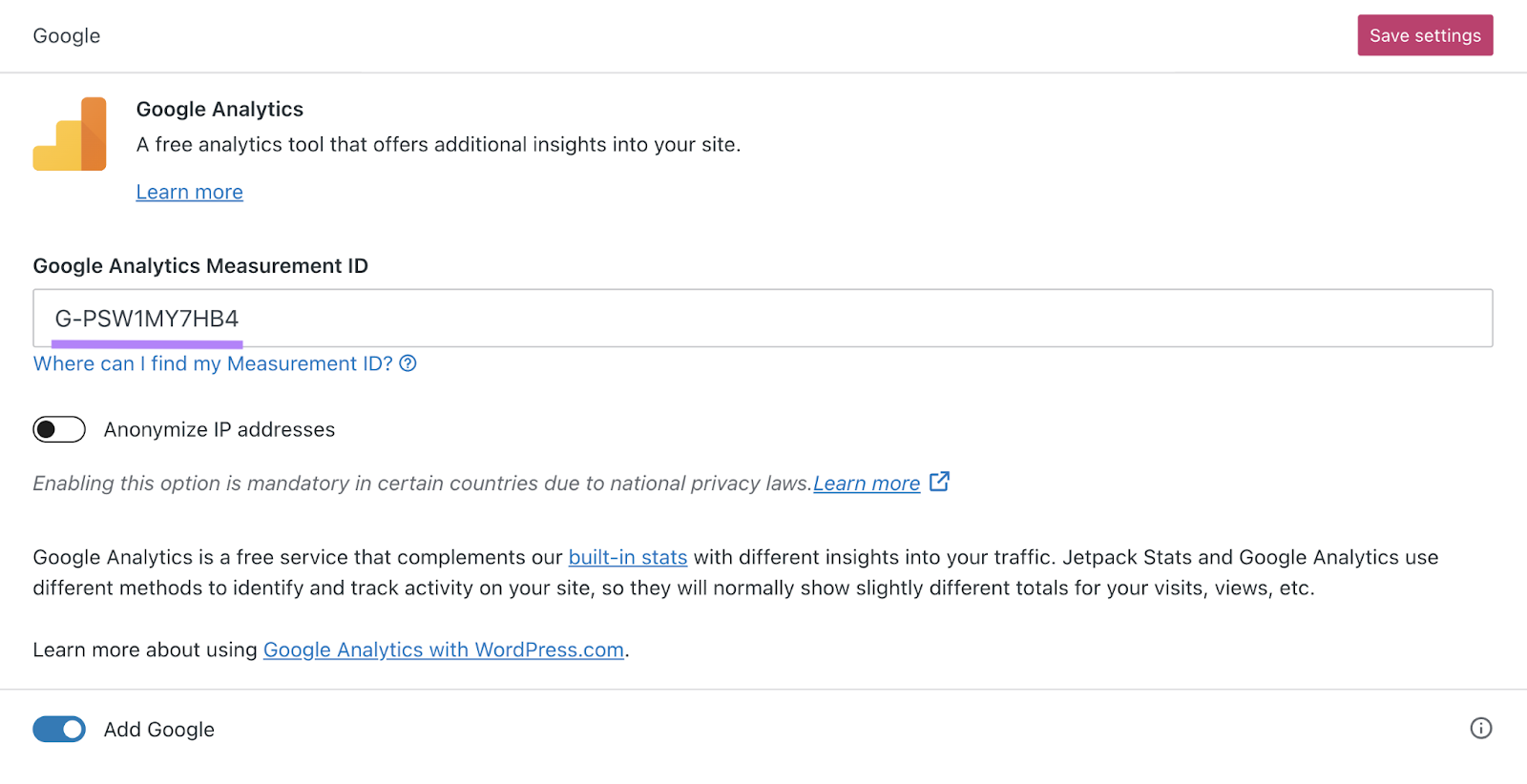
Generally, all you need to do is enter your measurement ID into a Google Analytics field.
For example, here’s what the field looks like in WordPress:
To find detailed instructions for your platform, sign into GA4 and open or create your property.
Then, go to “Admin” > “Property settings” > “Data collection and modification” > “Data streams.”
And click a data stream.
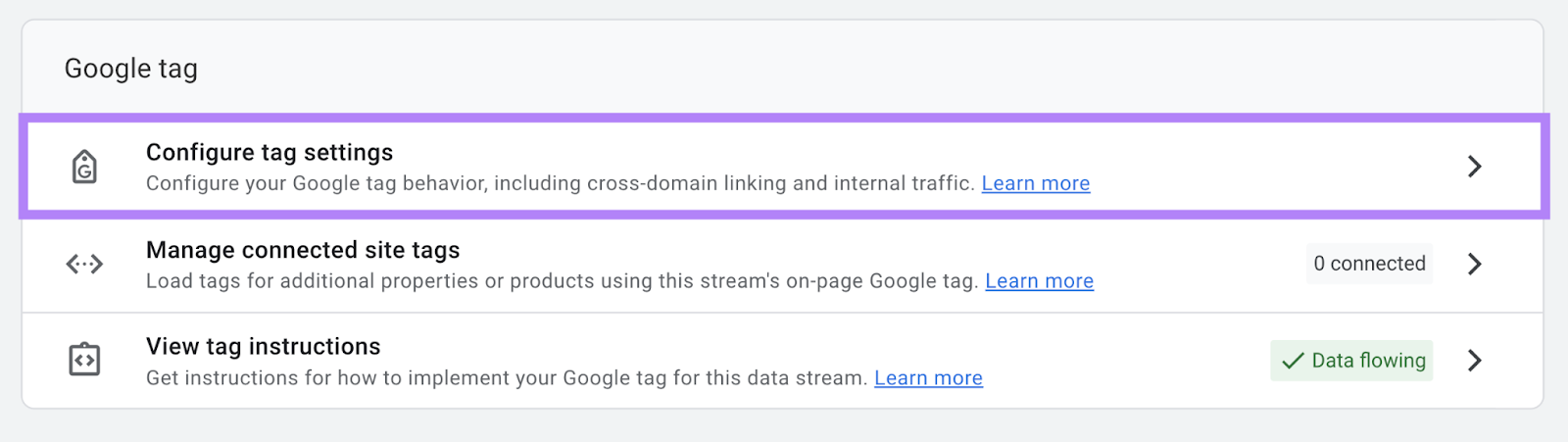
Scroll down to the “Google tag” section and click “Configure tag settings.”
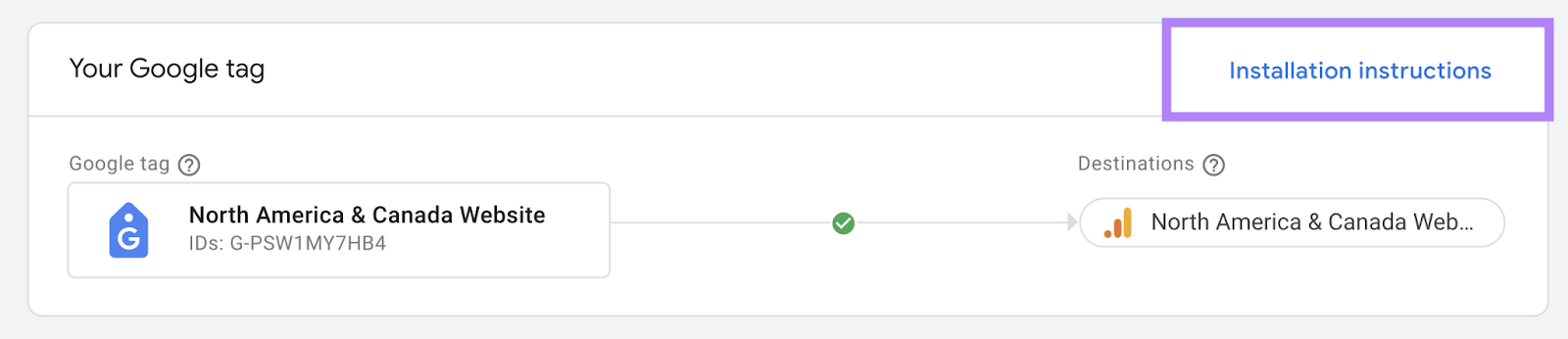
Next, click “Installation instructions.”
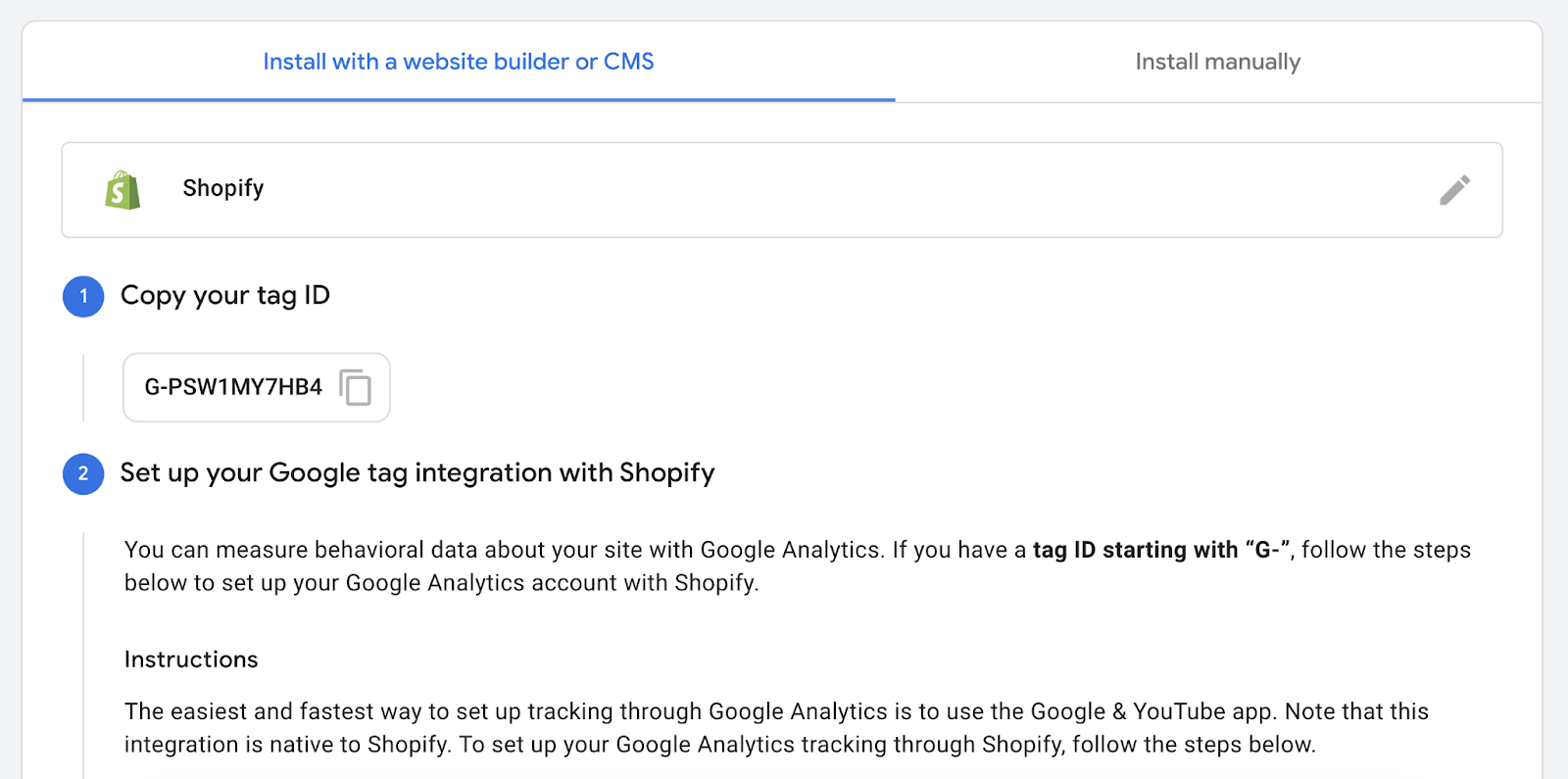
Click “Select your platform.” Then, if available, select your platform from the list.

Google will provide your Google tag ID and all the instructions you need.
Option 2: Configure GA4 in Google Tag Manager
Google Tag Manager (GTM) is a free tool that helps you manage various kinds of Google tags. Including the one used for GA4 installation.
In addition to setting up your GA4 property and web data stream, you’ll need to:
- Create an account in Tag Manager
- Create a “container” (a space to house all the tags, etc.) for your website
- Install the container on your website
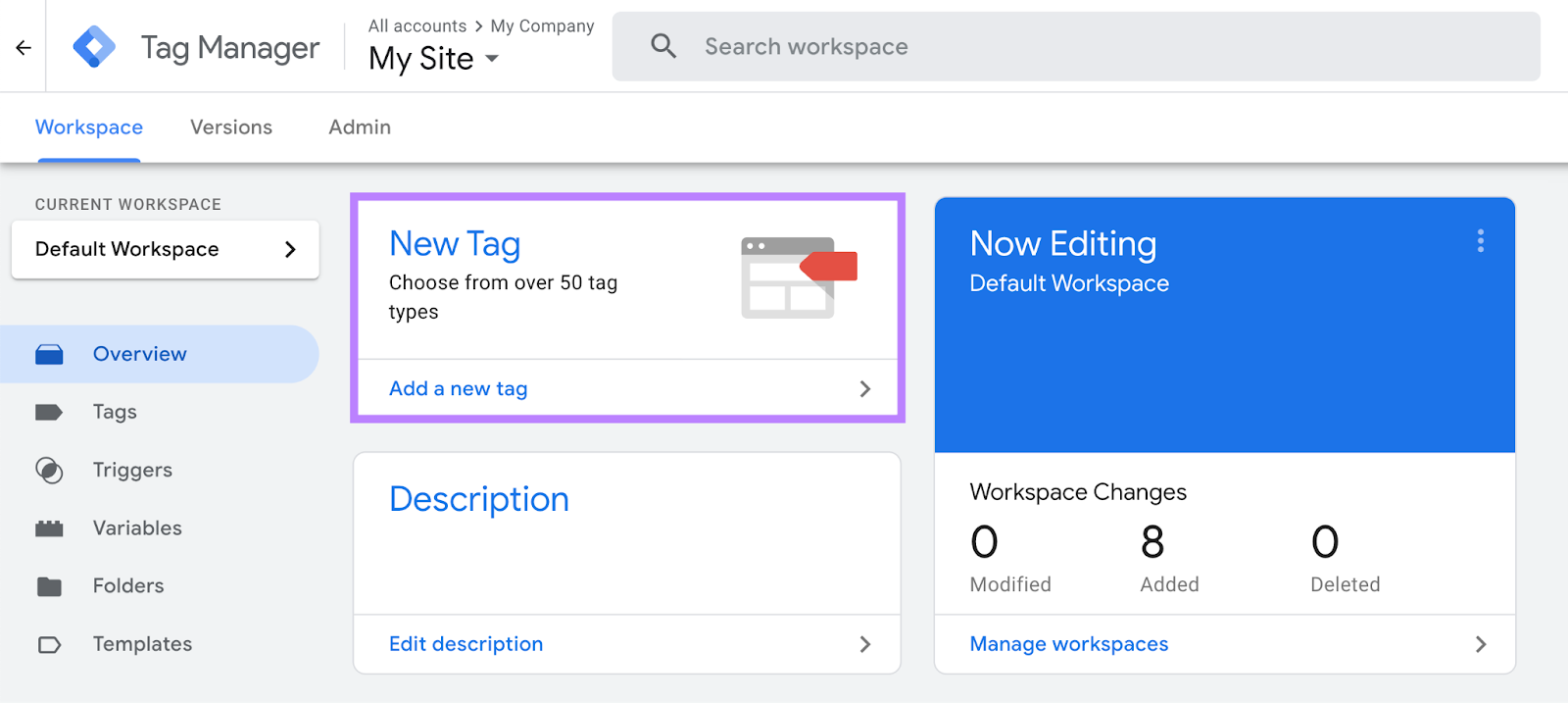
When you’re ready to configure GA4, open the relevant container in GTM.
And click “Add a new tag.”
Then, click “Tag Configuration” > “Google Analytics” > “Google Tag.”
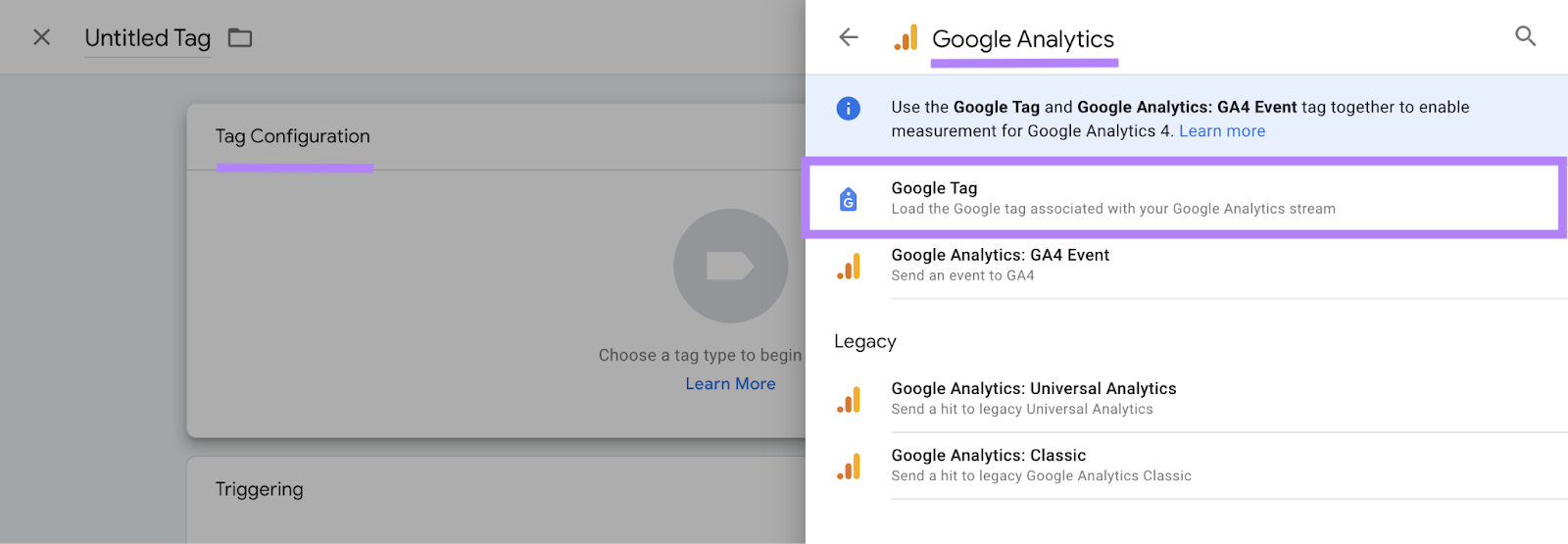
Enter the measurement ID for your GA property in the “Tag ID” field.
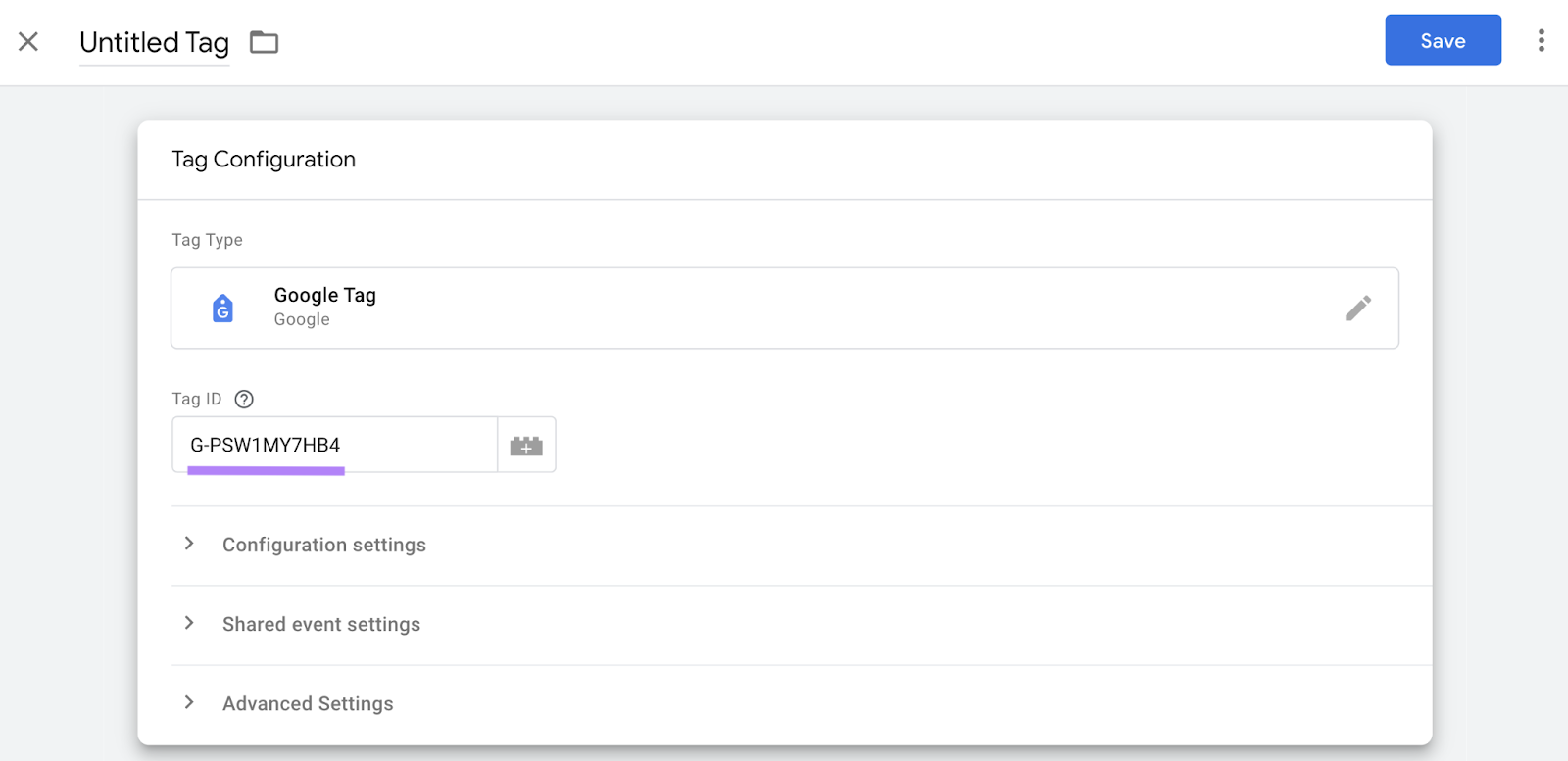
Then, follow the instructions in our GTM guide to configure the remaining settings to your needs.
Option 3: Manually Add the GA4 Tracking Code to Your Site
To manually install GA4, you need the Google tag for your data stream.
To find it, sign into Google Analytics. And open or create your property.
Then, go to “Admin” > “Property settings” > “Data collection and modification” > “Data streams.”
And click a web data stream.
Scroll down to the “Google tag” section and click “Configure tag settings.”
Then, click “Installation instructions.”
You’ll find the Google Analytics code in the “Install manually” tab.
Click the icon in the upper right to copy it.
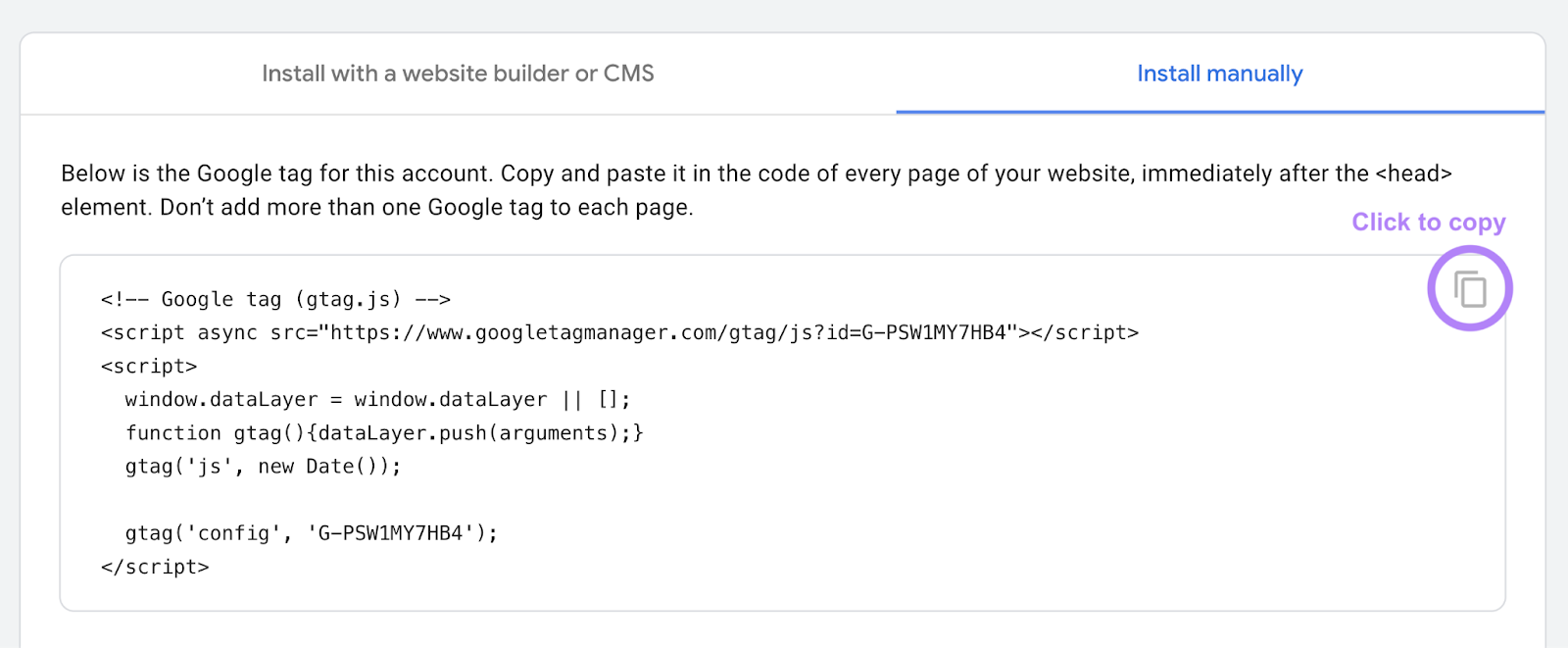
Next, you need to add the GA tracking code to your website. It should go immediately after the <head> tag in every webpage or webpage template.
Like this:
<!DOCTYPE html>
<html>
<head>
 <!-- Insert GA4 tag here -->
<!-- Other <head> elements like CSS links, meta tags, etc., go here -->
</head>
<body>
 <!-- Website content here -->
</body>
</html>When you’ve installed the Google tag, return to the GA4 page you were on last.
Then, enter your domain in the “Test your website (optional)” field and click the “Test” button to check if everything’s working correctly.

Take the Next Step: Integrate GA4 with Semrush
By connecting your GA4 property to Semrush, you can get additional insight into your website’s performance. And make better decisions for your business.
Let’s see what you can do with GA4 data in five popular tools.
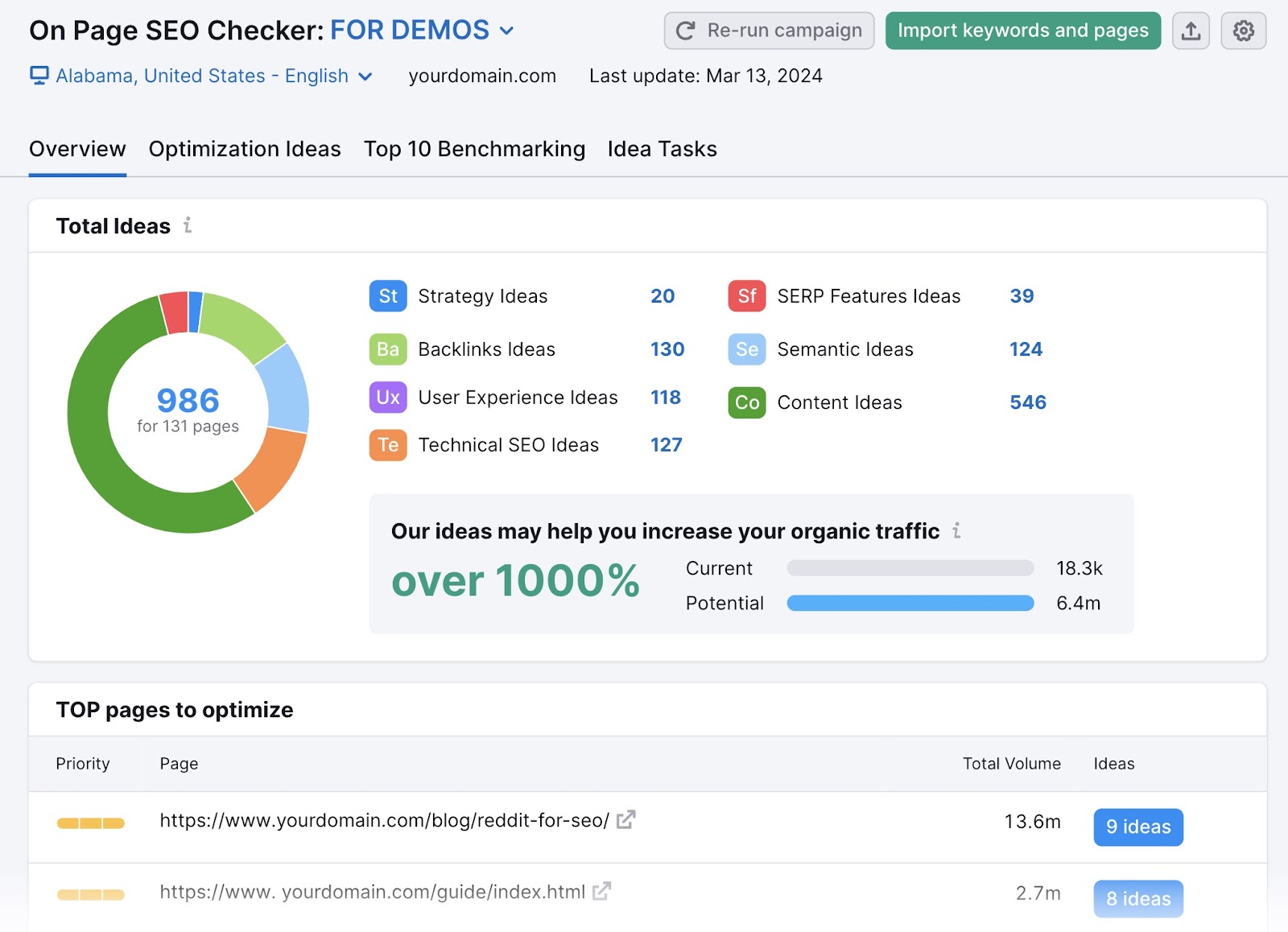
On Page SEO Checker
The On Page SEO Checker provides tailored recommendations to help your webpages appear higher for relevant search engine queries.
To connect to GA4, click the “Connect” button next to “User Experience Ideas.”
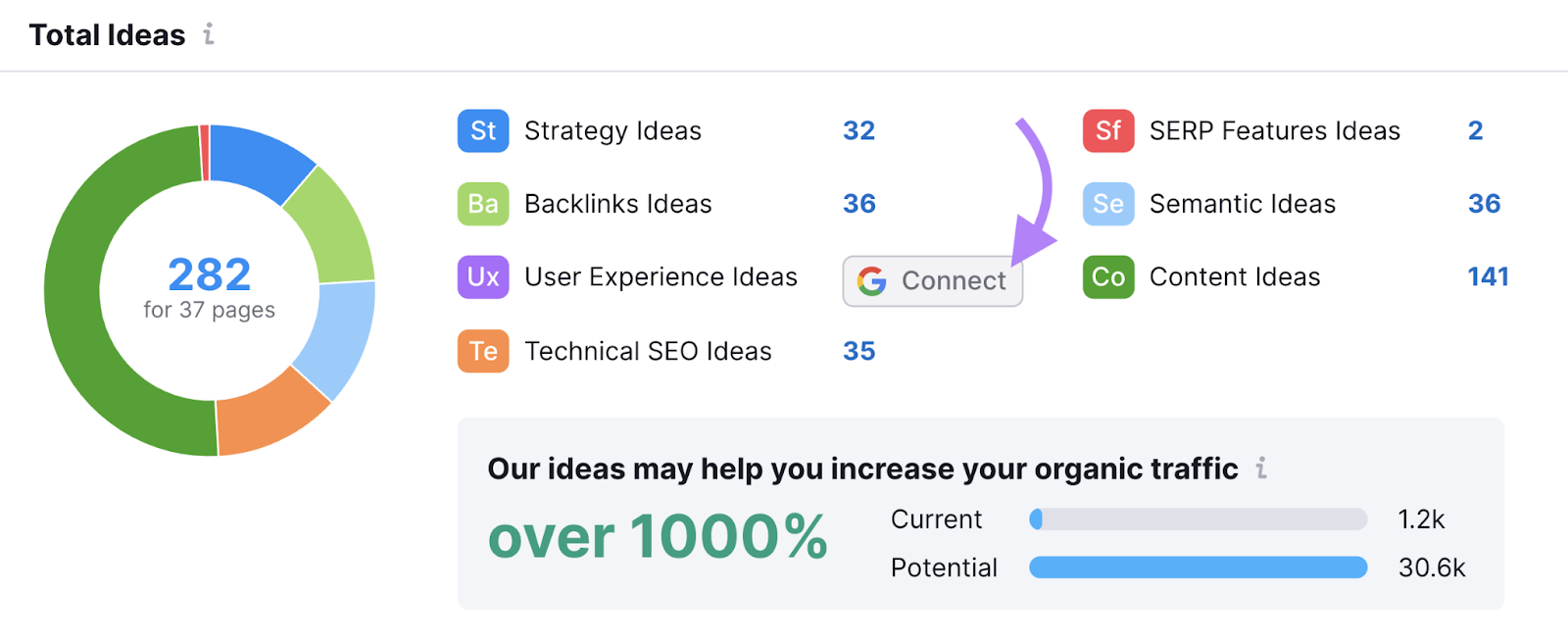
Then, follow the prompts.
The tool will then determine whether each page has a high bounce rate (i.e., lots of visitors leave without engaging) or a low time on page (i.e., lots of visitors leave soon after arriving).
These issues can suggest that your page is unsatisfactory and needs to be improved.

The tool may also provide ideas relating to keyword strategy, SEO backlinks (links to your site from other sites), content optimization, etc. So you can easily determine where to focus your on-page SEO efforts.
Backlink Audit
The Backlink Audit tool makes it easy to review and monitor your site’s backlinks.
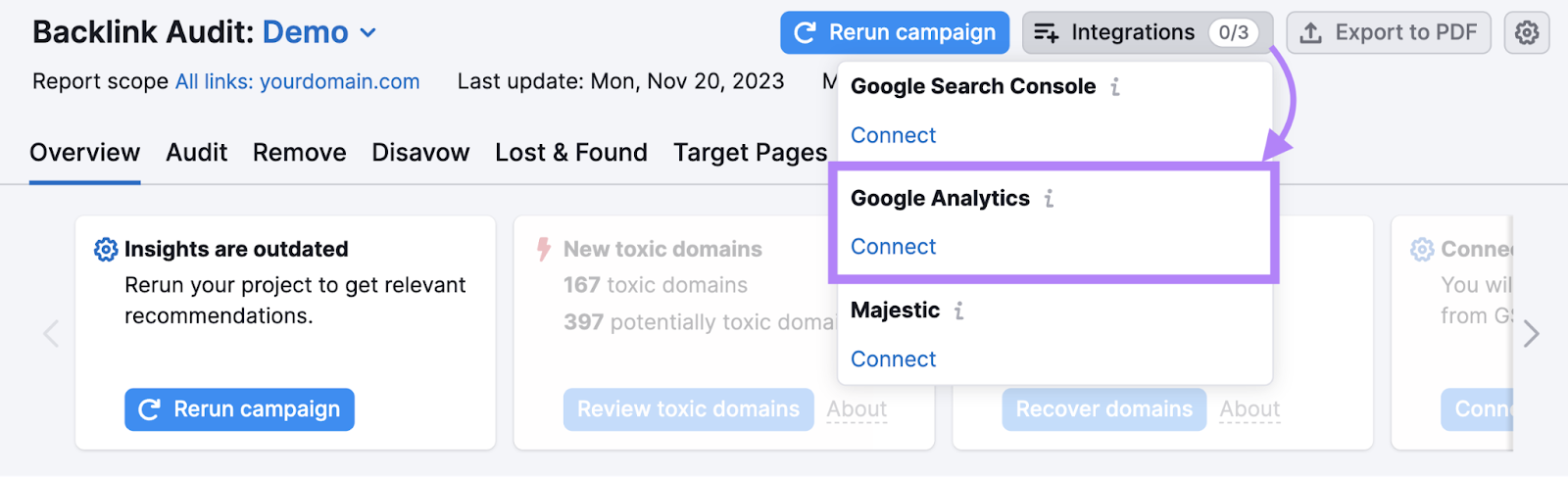
To link your GA4 account, click the “Integrations” button in the top right corner.
Then, select “Connect” under “Google Analytics” and provide the details requested.
Once you’re connected, you can see how much referral traffic each backlink drives:
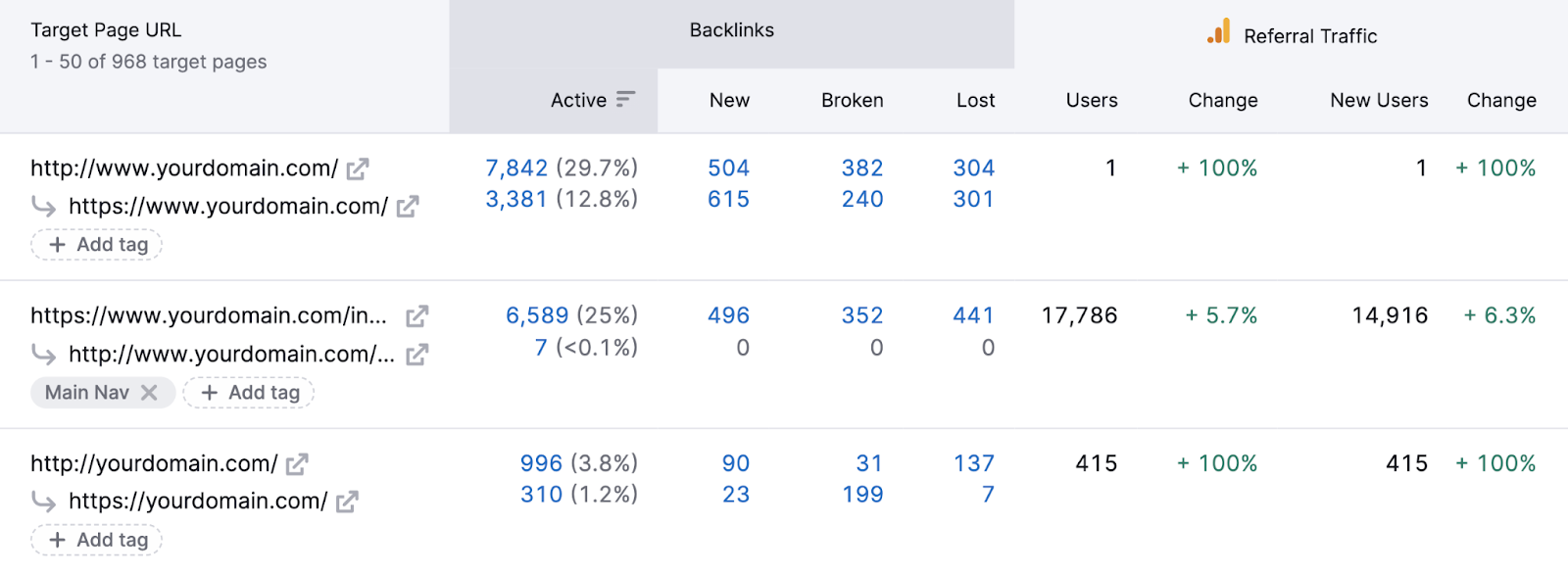
This data can help you evaluate the value and quality of each backlink.
Organic Traffic Insights
The Organic Traffic Insights tool helps you discover “(not provided)” keywords in Google Analytics.
If you haven’t noticed before, GA4 marks most search terms as “(not provided)” when you try to find them in your reports.
Like this:
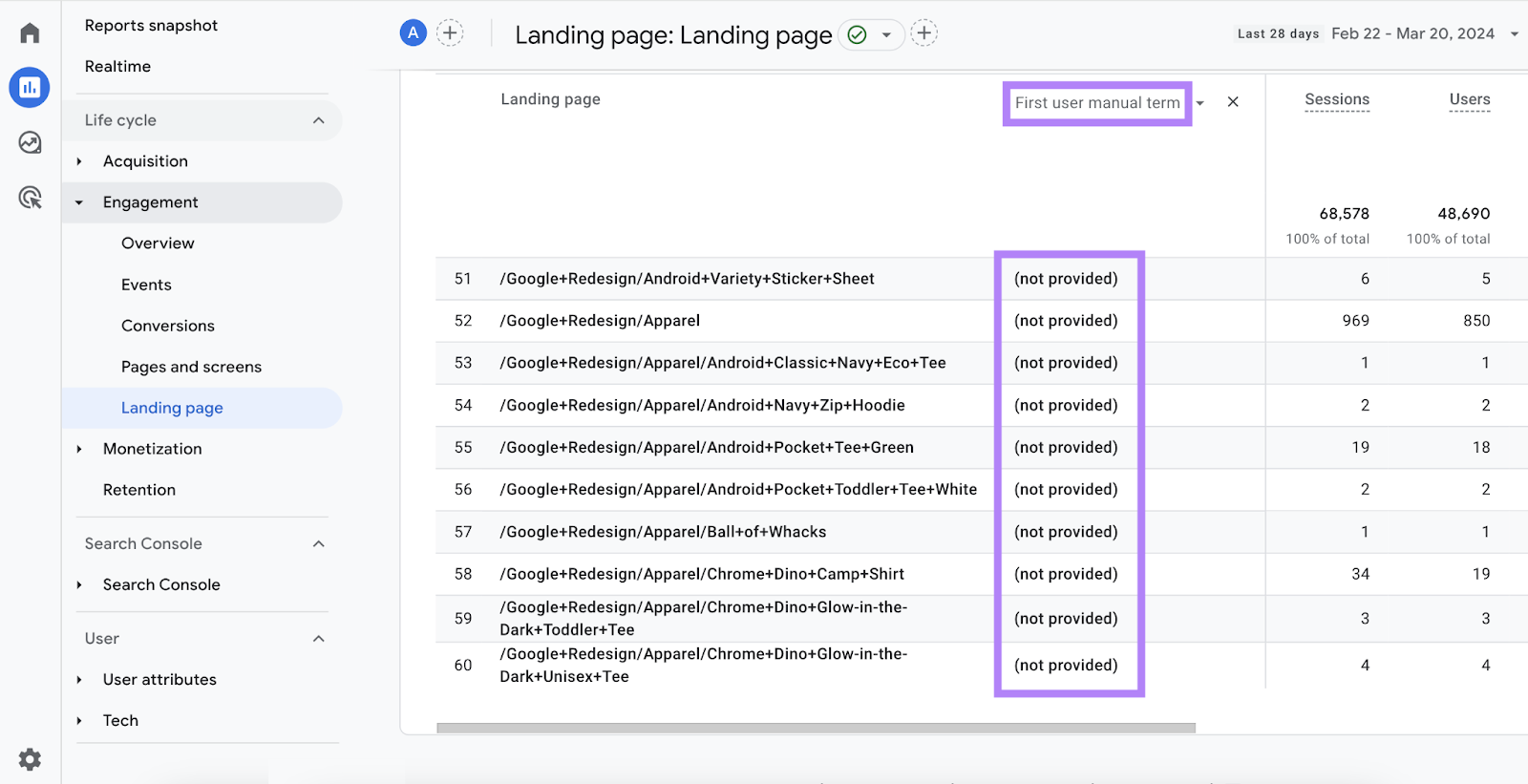
This means you can’t work out which search terms led users to your site.
But Organic Traffic Insights uncovers these keywords by combining data from Semrush, GA4, and Google Search Console.
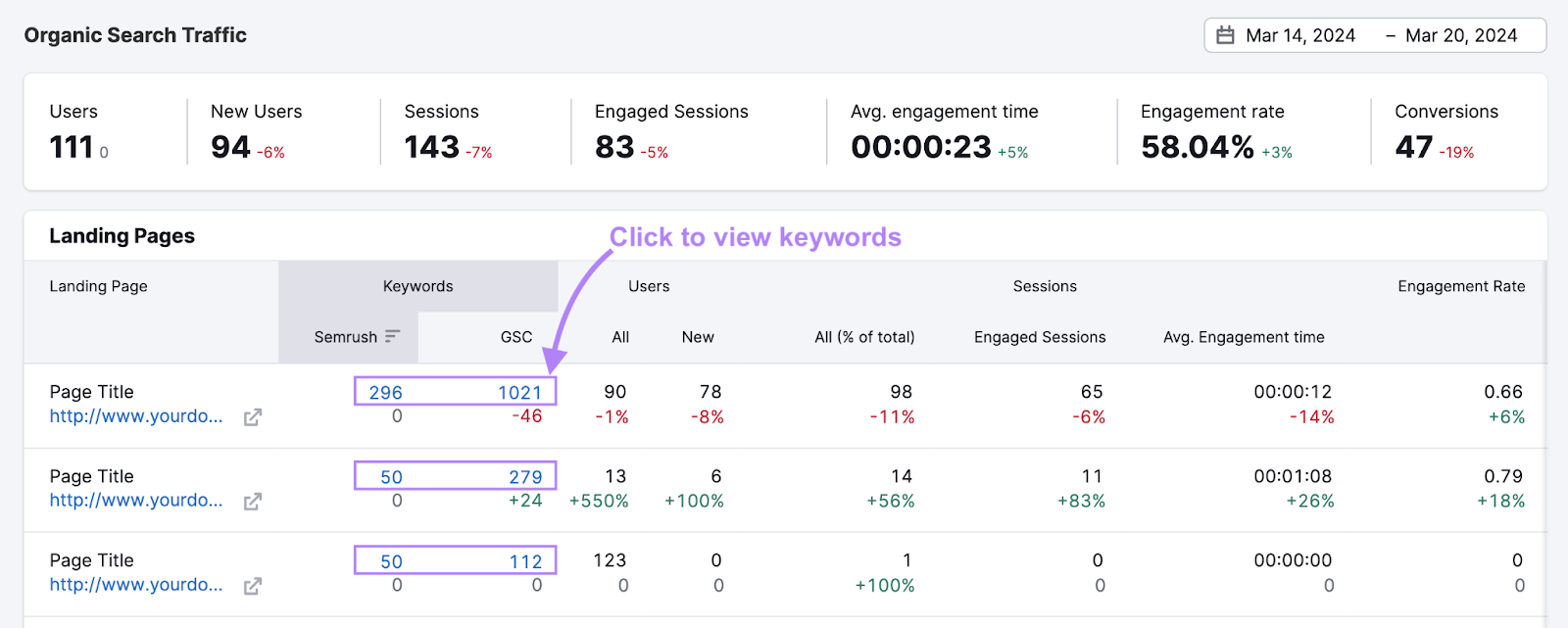
The tool also displays useful metrics from all three platforms in one simple interface.
Site Audit
The Site Audit tool checks your website for issues that could harm its performance in Google Search.
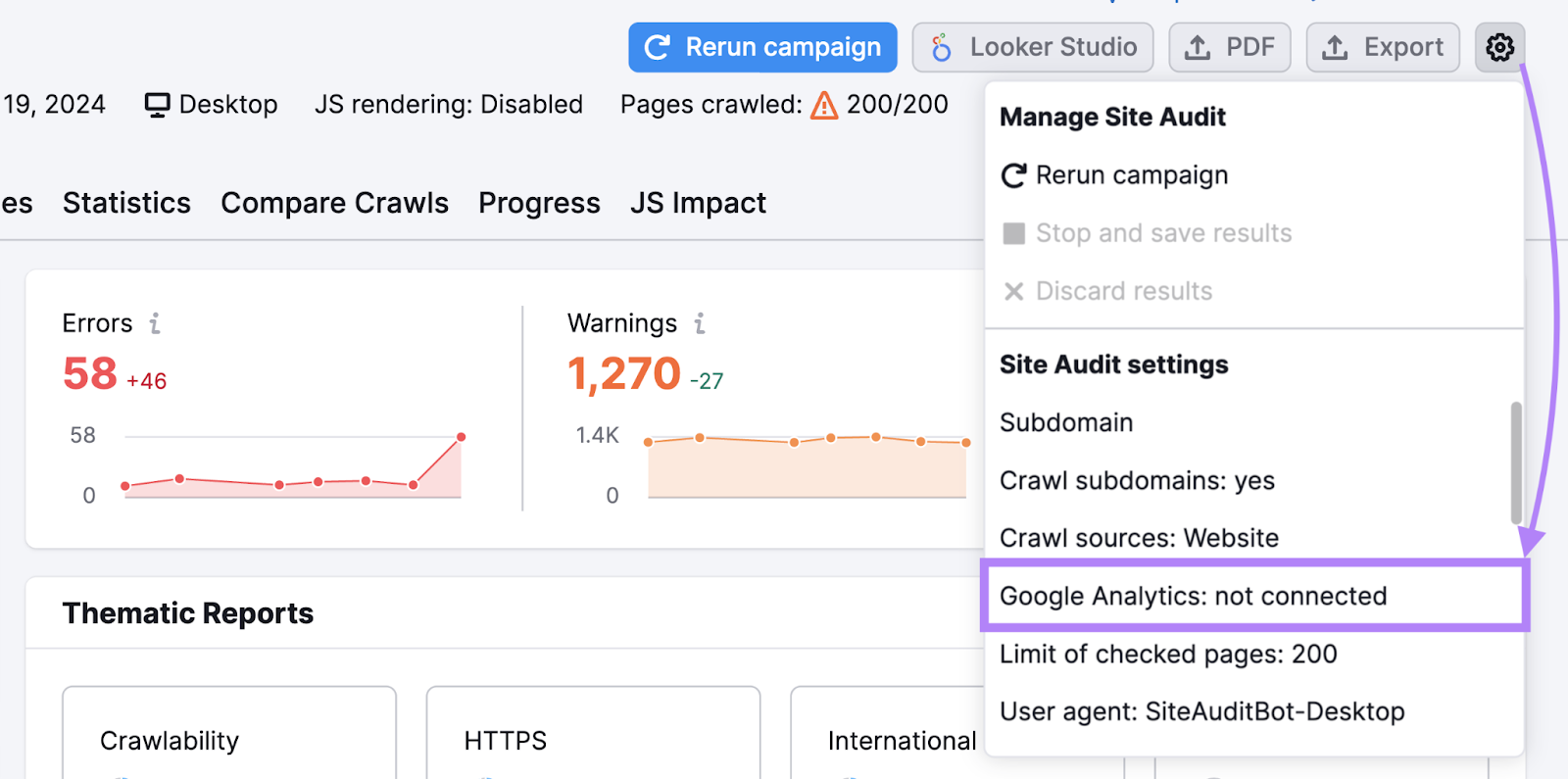
Connect your Google Analytics account by clicking the gear icon in the top right corner and selecting “Google Analytics: not connected.” Then, follow the remaining prompts.
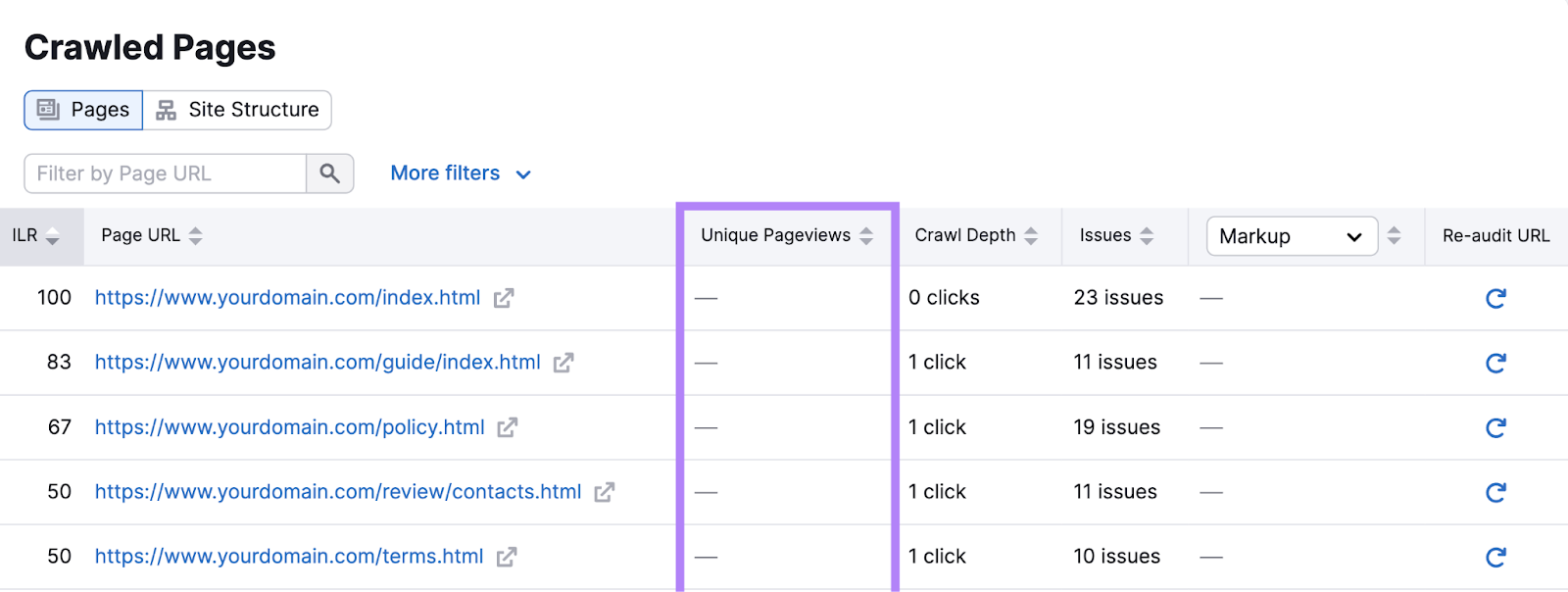
Once you’re connected, the tool will display pageviews (now called “views" in GA4) data. So you can prioritize issues based on each page’s popularity.
The GA integration also allows you to check more thoroughly for orphan pages—pages on your site that aren’t linked to from anywhere else on your site.
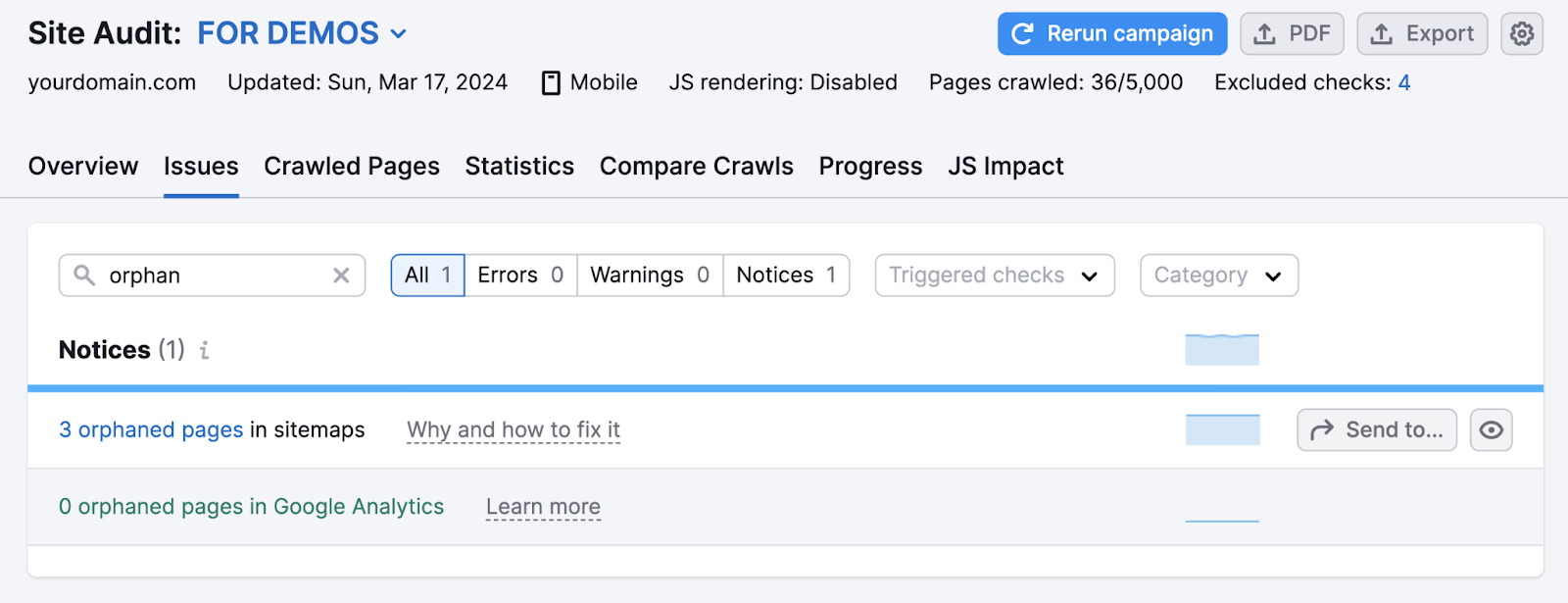
Adding internal links to these URLs is good for both the user experience and SEO.
Position Tracking
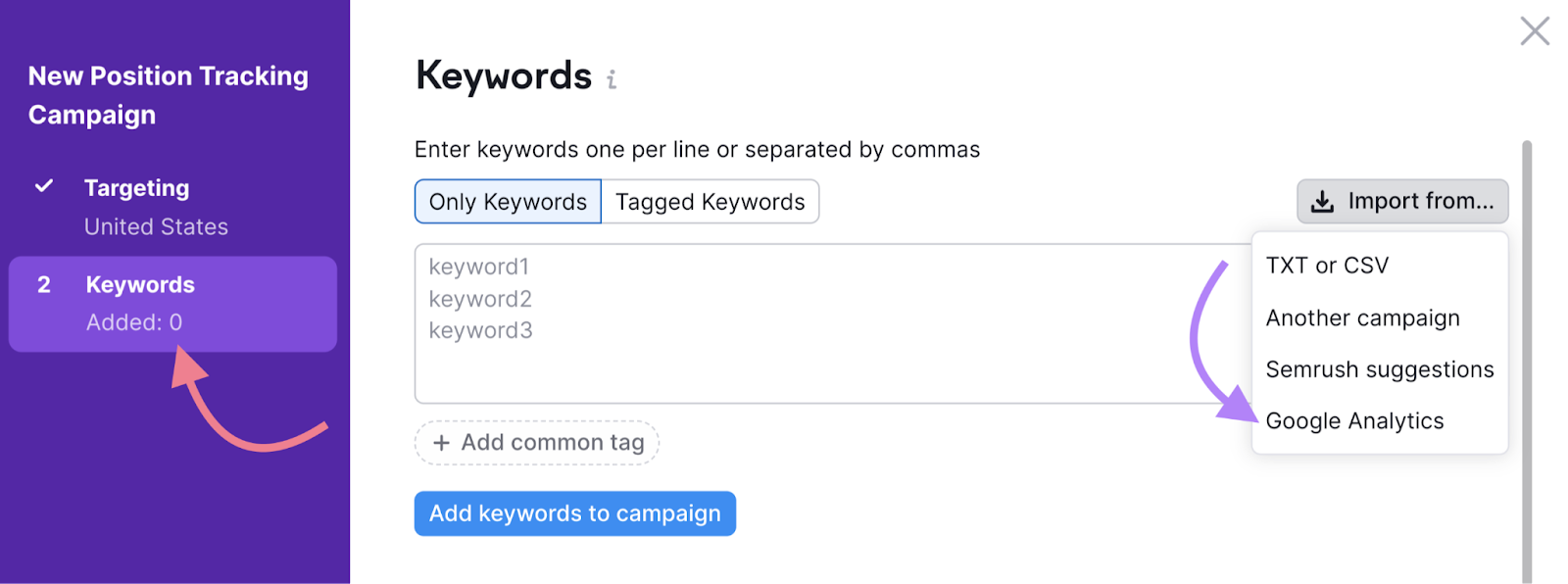
The Position Tracking tool makes it easy to track your Google keyword rankings (i.e., how high up in the results your website appears for relevant search queries).
You can import keywords you’re already ranking for from Google Analytics.
For each tracked keyword, you can see your ranking positions on the selected dates.
And gather lots of other useful data.
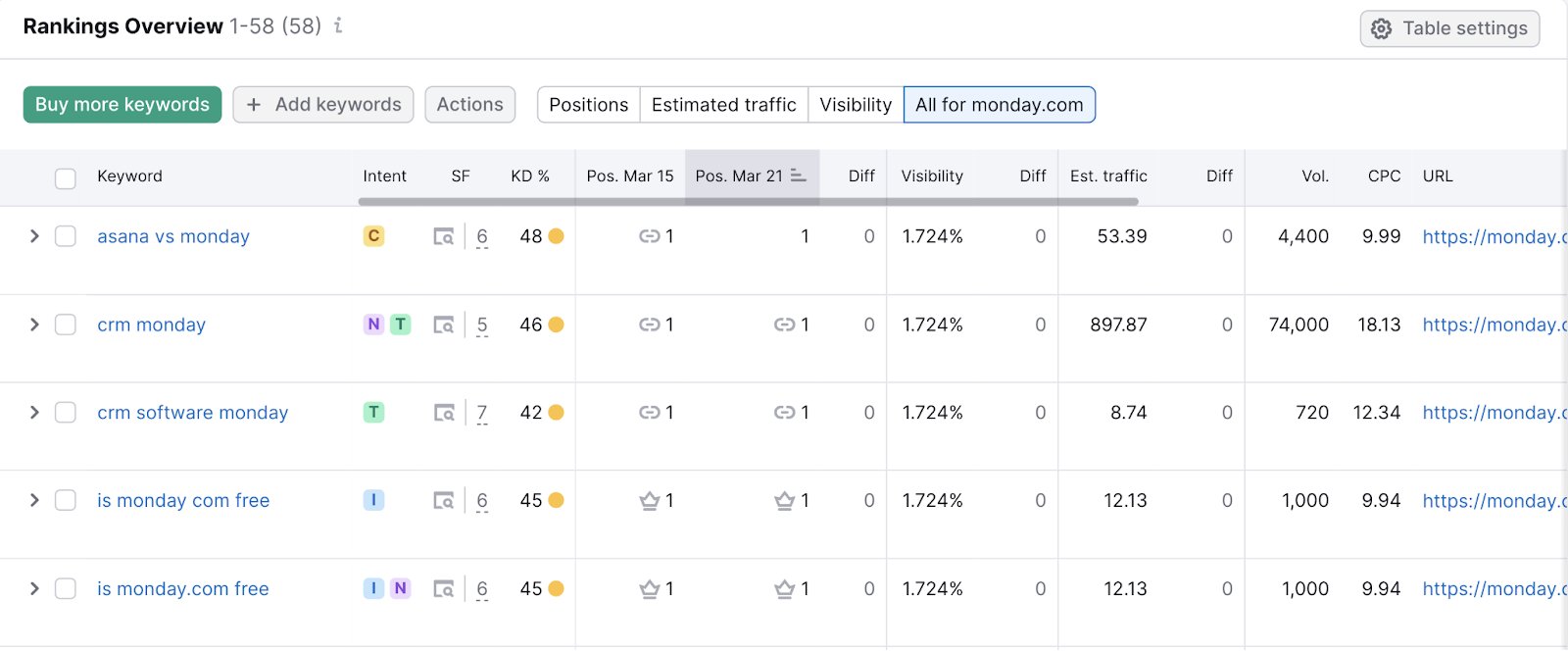
Use this information to keep an eye out for trends in your rankings. So you can take steps to improve your pages if needed.
Start Collecting and Analyzing Data
With the right marketing data at your fingertips, you can make better decisions for your business.
Get started by setting up GA4 and claiming your free Semrush trial.